
TL;DR, Quick Answer
9 min readTo announce completed Linear issues on social media, open Integrations > Linear in AdaptlyPost, click Connect Linear and approve read access, then add an announcement rule. A rule watches one Linear team, and optionally one label, and posts to up to 20 Facebook, Threads, X, Bluesky, LinkedIn, Mastodon, Telegram or Google Business Profile accounts. When an issue is completed, AdaptlyPost writes the post from your template or an AI caption and saves it as a draft or schedules it 5 minutes to 7 days later.
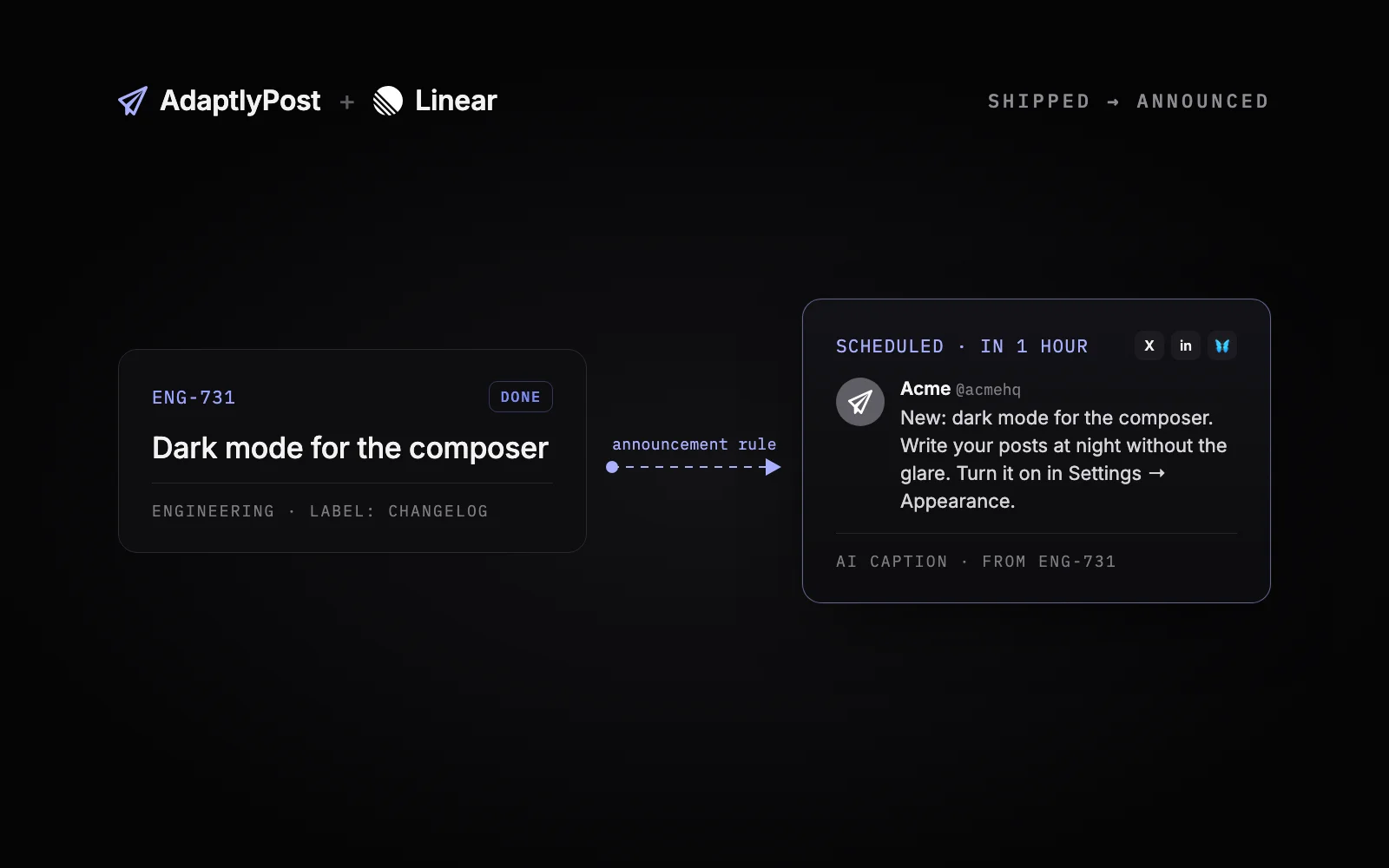
Most Linear integrations pull work into Linear: a Slack thread turns into an issue, a GitHub pull request closes one. AdaptlyPost goes the other way. When your team completes an issue in Linear, AdaptlyPost writes a social media post about it and saves it as a draft or schedules it, so the thing you shipped this morning gets announced without anyone copying the title into a scheduler.
AdaptlyPost is listed in Linear's integration directory under Automations. We build AdaptlyPost, and every option name below matches what you see on the Linear tab of the Integrations page.
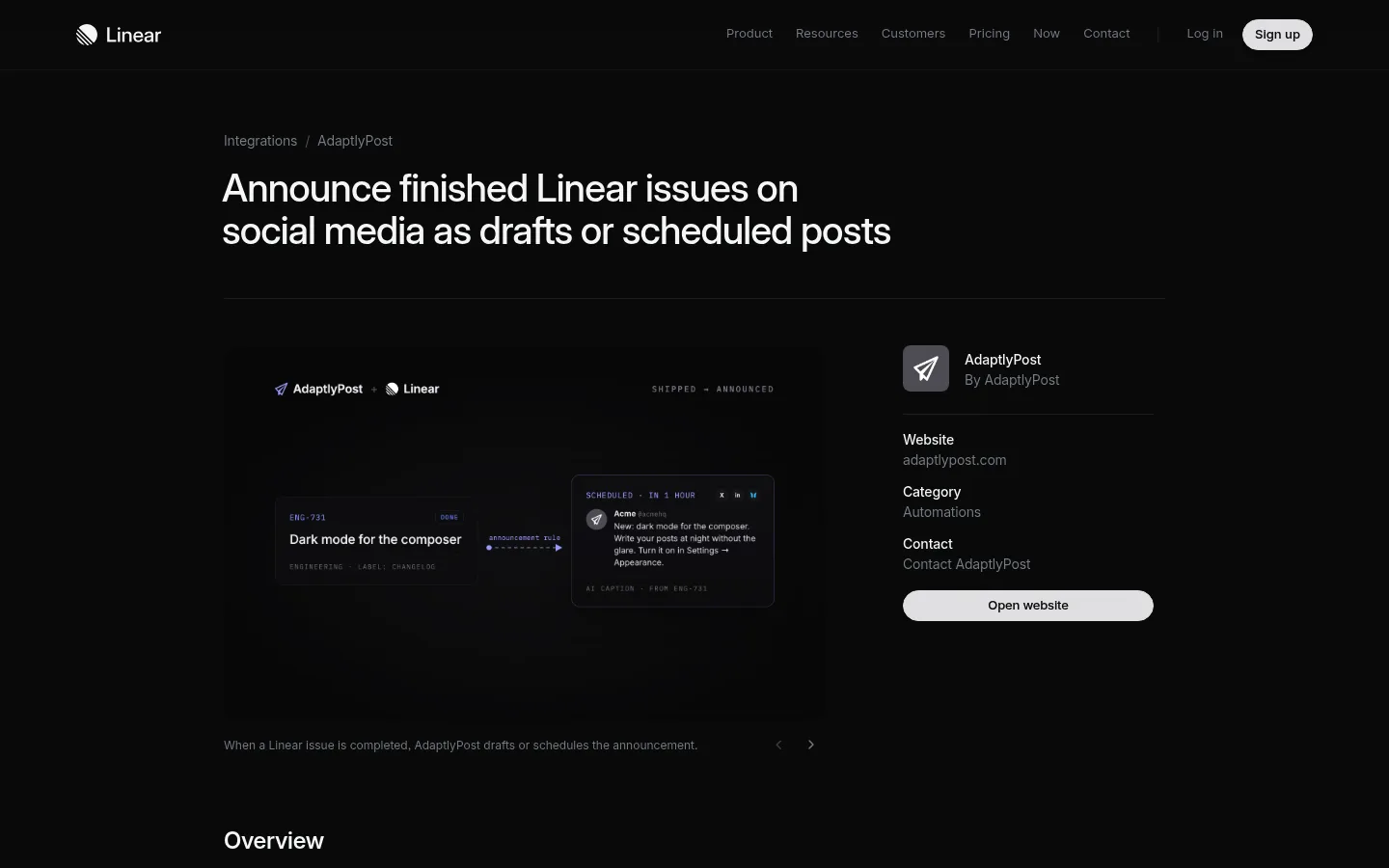
The short version: open Integrations > Linear in AdaptlyPost, click Connect Linear, then click Add rule. Pick a team, an optional label, your accounts, draft or schedule, and a template or AI caption. The next issue completed in that team gets a post.
What does the AdaptlyPost Linear integration do?
The AdaptlyPost Linear integration turns completed Linear issues into social media posts through announcement rules. Each rule watches one Linear team. When an issue in that team moves to a completed state, AdaptlyPost writes a post for the accounts on the rule.
A rule decides four things:
- Which issues. One Linear team, plus one label if you only want to announce some of the team's issues. A
changeloglabel is the common choice. - Which accounts. Up to 20 connected social accounts get each announcement.
- What happens next. The post is saved as a draft for someone to review, or scheduled to publish after a delay you set.
- Who writes it. Your own template filled in from the issue, or an AI caption written from the issue for each platform.
A workspace can have up to 20 rules, so one team can announce engineering changes to X and LinkedIn while another posts mobile releases to Mastodon.
AdaptlyPost reads Linear and never writes to it. The connection asks for read access only, enough to list your teams and labels and read the issues you complete.
Which social platforms can a Linear announcement post to?
A Linear announcement rule posts to 8 platforms: Facebook, Threads, X, Bluesky, LinkedIn, Mastodon, Telegram and Google Business Profile. Rules post text only, so platforms that need an image or a video are not offered.
That leaves out Instagram, TikTok, YouTube and Pinterest. If you also want a launch video on TikTok or a carousel on Instagram, create that post yourself in AdaptlyPost, which supports 14 platforms in total. For the X, LinkedIn and Bluesky crowd that follows a product's changelog, the text post is usually the right format anyway.
How do you connect Linear to AdaptlyPost?
You connect Linear to AdaptlyPost with Linear's own approval screen, and any Linear member can do it. You don't need to be a Linear admin.
- In AdaptlyPost, open Integrations and select the Linear tab, or go straight to app.adaptlypost.com/integrations?tab=linear.
- Click Connect Linear.
- Choose your Linear workspace and approve read access.
- Back in AdaptlyPost, the card shows Connected as with your Linear name.
The connection belongs to you, not to the AdaptlyPost workspace. It follows you into every workspace you are a member of, and each teammate who adds or edits a rule connects their own Linear account.
How do you set up an announcement rule?
You set up an announcement rule by clicking Add rule on the Linear tab and filling in four sections of one form.
- Linear team. Pick the team whose completed issues should be announced. Under Label, keep Any label or pick one label.
- Accounts. Pick the accounts that get each announcement, up to 20.
- When an issue is completed. Pick Create a draft or Schedule it. A scheduled post goes out after a delay between 5 minutes and 7 days, counted from the moment the issue was completed.
- Post content. Pick Template or AI caption.
Click Add rule and you are done. The toast says it plainly: the next issue completed in this team gets a post. Every option is documented on the Linear integration docs page.

AdaptlyPost
Start Your 7-Day Free Trial
All-platform analytics
Social Inbox
AI-powered assistant
How do you write a changelog post template from Linear issues?
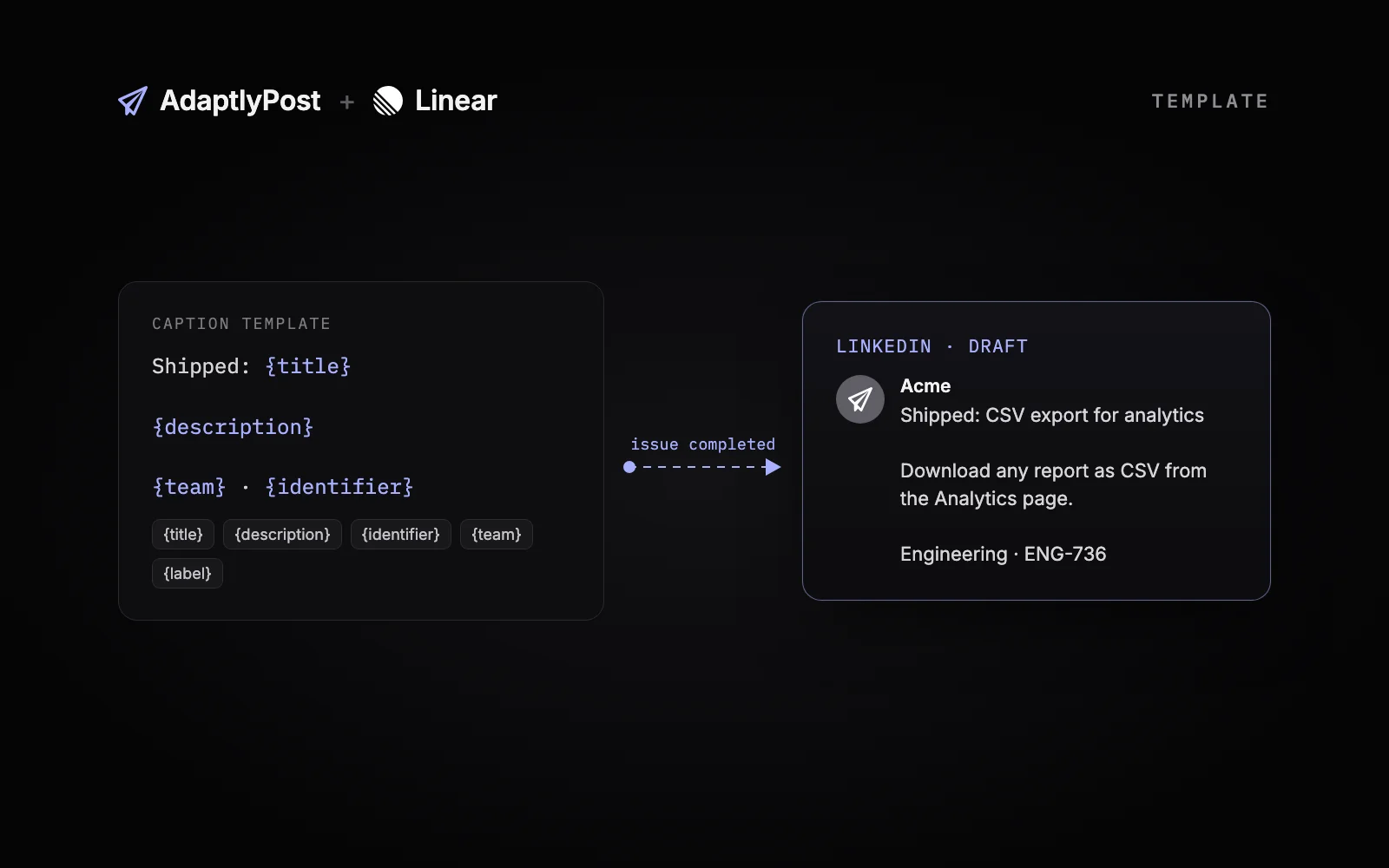
You write a changelog post template by typing your own text, up to 2,000 characters, and adding variables that AdaptlyPost fills in from each issue. Type { in the template, or click a chip under Insert:, to add one.
| Variable | Filled with |
|---|---|
{title} | The issue's title |
{description} | The issue's description, without Markdown formatting, shortened to fit each platform |
{identifier} | The issue's ID, such as ENG-123 |
{team} | The Linear team's name |
{label} | The label the rule watches, empty when the rule has no label |
A new rule starts with {title}, a blank line and {description}. That works if your issue titles are written for users. If they read like "Fix race in composer autosave", add a prefix such as Shipped: and lean on the description, which is where the user-facing explanation usually lives.
Because {description} is shortened per platform, one template covers X's short limit and LinkedIn's long one. The cost of a template is discipline in Linear: the post is only as good as the issue text your team writes.
Should you use a template or an AI caption?
Use a template when your Linear issues already read well to customers, and an AI caption when they are written for engineers. A template costs nothing per post. An AI caption uses 1 AI credit per platform for every completed issue.
With AI caption, AdaptlyPost writes a caption for each platform from the issue's title and description. The optional Instructions for the AI box takes up to 1,000 characters of guidance, such as "Friendly tone, explain what changed for users, no hashtags". The credits come from the member who owns the rule, which matters on a busy team: a rule on 3 platforms that sees 40 completed issues a month spends 120 credits.
If you want to see how AdaptlyPost's AI writes before you point it at your backlog, the ChatGPT social media posts guide shows the same caption work from a chat.

Should completed issues become drafts or scheduled posts?
Completed issues should become drafts while you are getting the rule right, and scheduled posts once the output is boring in a good way. A draft waits in AdaptlyPost until someone reviews and publishes it. A scheduled post publishes on its own after the delay.
The delay is the safety net. It runs from the moment the issue was completed, never less than 5 minutes and up to 7 days, and until then the post waits in AdaptlyPost as a scheduled post you can still change. An hour is a sensible default for a changelog: long enough for someone to catch a bad caption, short enough that the announcement still lands the same day.
Your workspace role decides which options you see. Contributors can only create draft rules. Admins and Editors can also create rules that schedule.
Which Linear issues get announced?
A Linear issue gets announced when it moves to a completed state in the rule's team, carries the rule's label if the rule has one, and was completed after the rule was added. Each issue is announced once per rule.
The edge cases are where a naive webhook would spam your followers, so they are worth knowing:
- Reopening an issue and completing it again does not create a second post.
- Editing an issue that is already done does nothing.
- Issues completed before you added the rule are not announced, so connecting Linear does not dump your backlog onto X.
- Canceled issues are not announced.
Every handled issue shows up under Recent issues on the rule with a status (Posting, Draft created, Scheduled, Skipped or Failed) and an Open post link. The post goes through the same checks as one you create by hand. If a check fails, the issue shows as Failed with the reason.

AdaptlyPost
Start Your 7-Day Free Trial
All-platform analytics
Social Inbox
AI-powered assistant
Who on the team can create and edit announcement rules?
Admins and Editors can create, edit, pause, resume and delete any announcement rule. Contributors can add rules that create drafts and edit their own, and every role can see the rules and their recent issues.
| Action | Roles |
|---|---|
| See rules and their recent issues | Every role |
| Add a rule, or edit your own, that creates drafts | Admin, Editor, Contributor |
| Add or edit a rule that schedules posts | Admin, Editor |
| Use AI captions | Admin, Editor, Contributor |
| Edit, pause, resume or delete another member's rule | Admin, Editor |
A rule runs as the member who last added, edited or resumed it. AdaptlyPost reads Linear through that member's connection, creates posts with that member's permissions and charges AI credits to that member. Editing or resuming someone else's rule makes you its owner, and needs your own Linear connection with access to the team. The full role list is under roles and permissions.
Why did an announcement rule pause?
An announcement rule pauses on its own when it can no longer post safely, and the rule card says which reason applies. There are five automatic reasons:
- The owner's Linear connection was removed or expired. Reconnect Linear, then resume.
- The owner can no longer post in this workspace. Edit or resume the rule to take it over.
- The workspace's plan doesn't cover posting. Renew the plan, then resume.
- None of the rule's accounts are connected anymore. Edit it and pick accounts.
- Three announcements failed in a row. Open Recent issues, read the error, fix the cause, then resume.
A member can also pause a rule from the card menu, and completed issues are ignored until someone resumes it. Disconnecting Linear pauses every rule that uses your connection, and nothing changes in Linear.
When should you use Zapier, n8n or the API instead?
Use the Linear integration when the event is "an issue was completed" and the output is a text post. Reach for something else when the trigger or the post is different.
- Another trigger. Zapier and n8n both have their own Linear steps, so a project update or a new comment can start a flow that ends in AdaptlyPost. The Zapier social media automation guide and the n8n social media automation guide cover the AdaptlyPost side.
- Posts with media. A release video for TikTok or an Instagram carousel needs Create Post in Zapier, the n8n node or the REST API, since rules post text only.
- An AI agent that writes the whole release thread. The MCP server lets ChatGPT or Claude draft and schedule posts from a chat. The API and AI agents page lists every way in.
For a weekly build-in-public habit on top of the automatic posts, the social media tools for indie hackers roundup covers the rest of the stack.
Frequently Asked Questions
Does the AdaptlyPost Linear integration change anything in Linear?
The AdaptlyPost Linear integration never changes anything in Linear. It asks for read access only, so it can list your teams and labels and read the issues you complete. Disconnecting it revokes that access and deletes the connection, and your Linear workspace stays as it was.
Do you need to be a Linear admin to connect AdaptlyPost?
Any Linear member can connect AdaptlyPost, and no Linear admin approval is needed. The account you connect must be a member of the team you want to announce. If no teams appear when you add a rule, that Linear account is not in any team yet.
Can one rule announce issues from several Linear teams?
One announcement rule watches exactly one Linear team. To announce several teams, add one rule per team. A workspace holds up to 20 rules, and each rule can post to its own set of up to 20 accounts.
Can AdaptlyPost post completed Linear issues to Instagram?
AdaptlyPost does not post Linear announcements to Instagram, because rules post text only and Instagram needs an image or video. The same goes for TikTok, YouTube and Pinterest. Rules post to Facebook, Threads, X, Bluesky, LinkedIn, Mastodon, Telegram and Google Business Profile.
How much do AI captions for Linear issues cost?
AI captions for Linear issues use 1 AI credit per platform for every completed issue, charged to the member who owns the rule. A template caption uses no credits. Switch a rule to Template if a busy team burns through credits faster than you expected.
Will old Linear issues get posted when you connect?
Old Linear issues do not get posted when you connect. Only issues completed after you added the rule are announced, and each issue is announced once per rule, even if it is reopened and completed again.
Can you announce only some Linear issues?
An announcement rule takes an optional label next to its team, and with a label set, only issues that carry it get a post. A changelog label is the common choice. Keep Any label if every completed issue in the team should be announced.
What happens when a Linear announcement fails?
The issue shows as Failed under Recent issues on the rule, with the reason. The post goes through the same checks as one you create by hand. If three announcements fail in a row, the rule pauses until you fix the cause and resume it.
Can you review a Linear announcement before it is published?
Set the rule to Create a draft and each post waits in AdaptlyPost until someone reviews and publishes it. With Schedule it, the post waits for the delay you set, from 5 minutes to 7 days, and you can still change it until then.
AdaptlyPost
Start Your 7-Day Free Trial
All-platform analytics
Social Inbox
AI-powered assistant
Can Contributors set up Linear announcement rules?
Contributors can add rules that create drafts and edit their own. Rules that schedule posts need an Admin or an Editor. Contributors can use AI captions too.
Was This Article Helpful?
Let us know what you think!
See us more often in Google
One click marks AdaptlyPost as a preferred source, so our articles sit higher in your Top Stories, AI Mode, and AI Overviews.
Before you go...
AdaptlyPost
Schedule your content across all platforms
Manage all your social media accounts in one place with AdaptlyPost.
All-platform analytics
Social Inbox
AI-powered assistant
Related Articles

How to Publish Social Posts Straight From a Notion Content Calendar
Turn a Notion content calendar into scheduled social posts: set a row to Ready and AdaptlyPost drafts or schedules it, then writes the status back.
How to Set Up Zapier Social Media Automation With AdaptlyPost
Set up Zapier social media automation with one AdaptlyPost API token: turn sheet rows into scheduled posts, flag failed posts and email weekly analytics.


How to Set Up Hermes Agent Social Media Posting With the AdaptlyPost Plugin
Set up Hermes Agent social media posting with the AdaptlyPost plugin: two commands, one OAuth sign-in, 14 platforms, and an approval prompt before every write.