
TL;DR, Quick Answer
9 min readTo automate social media posts with Zapier, add the AdaptlyPost app to a Zap, connect it with an adaptly_ API token from app.adaptlypost.com/api-tokens, and build on its 5 instant triggers, 10 actions and 5 searches. Create Post publishes, schedules or drafts a post on Instagram, TikTok, YouTube, X, LinkedIn, Facebook, Pinterest, Threads, Bluesky, Mastodon and Google Business Profile. Post Failed, Post Partially Failed and Account Disconnected tell you when a post or an account needs a person.
Good Zapier social media automation starts with something a social media scheduler is not built for: noticing that something happened in another app. A row lands in a spreadsheet, a form gets a new answer, a week ends. If you want that event to become a post, or you want a post's result to reach the place where your team works, you connect the two.
The AdaptlyPost app is public in Zapier's app directory, and AdaptlyPost links to it under Integrations > Zapier. This guide covers what the app can do, how to connect it, and four Zaps you can copy. The trigger, action and field names below match what you see in the Zap editor.
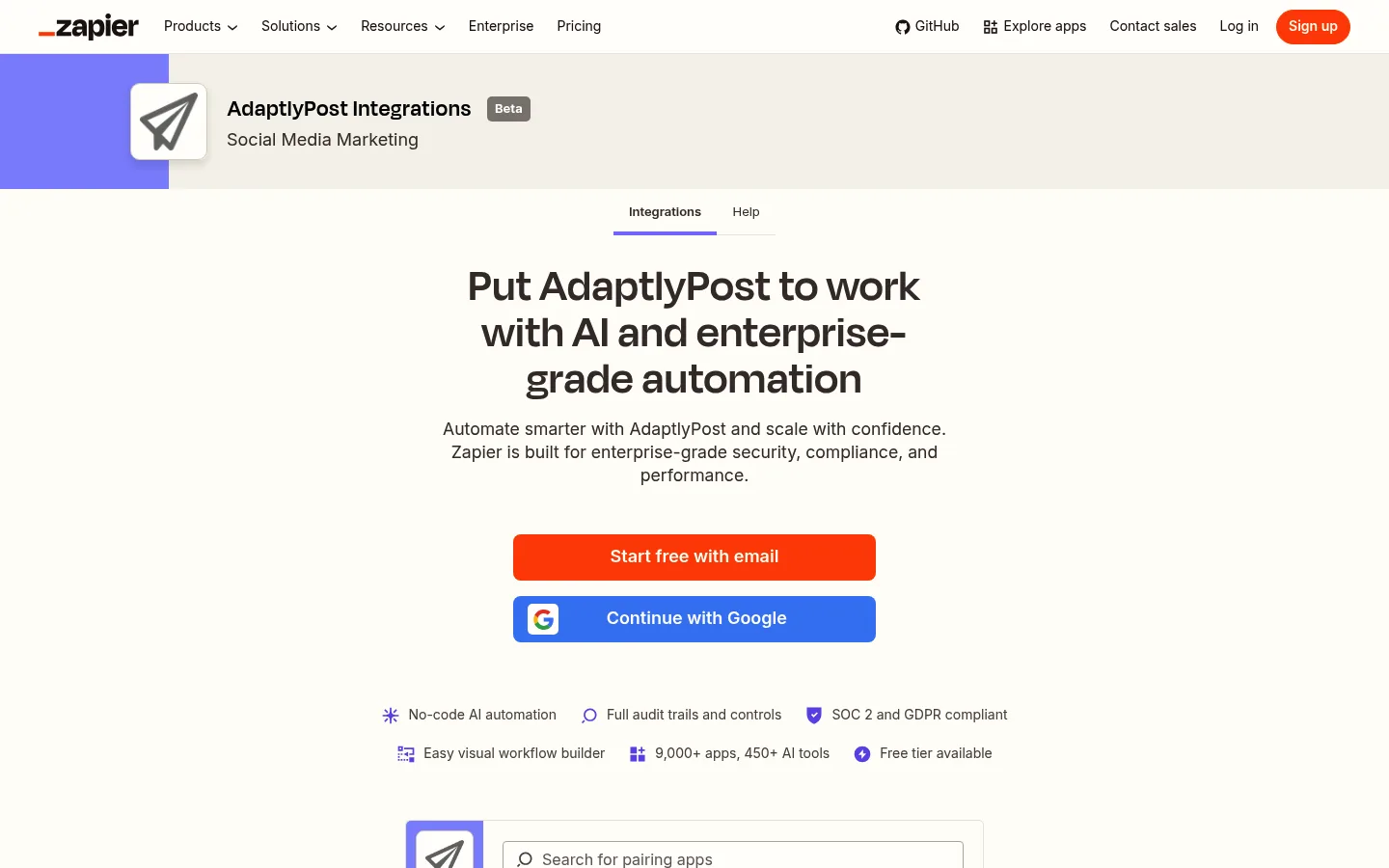
The short version: create an API token at app.adaptlypost.com/api-tokens, add AdaptlyPost as a step in a Zap and paste the token when Zapier asks for it. Use Create Post to publish or schedule, and use Post Failed, Post Partially Failed or Account Disconnected as triggers to hear about problems.
What can the AdaptlyPost Zapier app do?
The AdaptlyPost Zapier app has 5 triggers, 10 actions and 5 searches. Triggers start a Zap, actions change something in AdaptlyPost, and searches look something up for a later step.
All five triggers are instant. Each one registers a webhook in AdaptlyPost when you turn its Zap on and removes it when you turn the Zap off.
- Post Published fires when every targeted platform published a post.
- Post Partially Failed fires when some platforms published a post and others failed.
- Post Failed fires when every targeted platform failed to publish a post.
- Post Scheduled fires when a post is accepted onto the schedule.
- Account Disconnected fires when a social platform rejects a connected account and it needs reconnecting.
The actions:
- Create Post publishes a post now, schedules it, or saves it as a draft on one or more connected accounts. A scheduled post can repeat daily, weekly, monthly or yearly.
- Check Post takes the same fields as Create Post and creates nothing. It reports, for each account, what would stop the post, and returns a Valid field you can filter on.
- Publish Draft publishes a draft now or schedules it for later.
- Retry Failed Platforms re-queues every platform that failed on a post.
- Unschedule Post turns a scheduled post back into an undated draft.
- Delete Post deletes a draft or scheduled post.
- Pause Recurring Post, Resume Recurring Post and Delete Recurring Post control a repeating series.
- Remove Social Account disconnects an account from the workspace. It needs an Admin token.
The searches are Find Post, Find Recurring Post, Find Post Results for the outcome on each platform, Find Analytics Overview for workspace totals over a date range, and Find Instagram Audio for music or an original sound to add to a reel.
How do you connect AdaptlyPost to Zapier?
You connect AdaptlyPost to Zapier with an API token, never with your password. Zapier asks for one field, the token, and sends it with every request.
- Open app.adaptlypost.com/api-tokens and create a token. It starts with
adaptly_. - Pick the token's role. An Editor or Admin token can schedule and publish. A Contributor token can only save drafts and upload media, and a Viewer token can only read.
- In Zapier, create a Zap, search for AdaptlyPost and choose a trigger or an action.
- When Zapier asks you to sign in, paste the token. Zapier tests it and names the connection after your workspace.
A token belongs to one workspace. If you keep brands or clients in separate AdaptlyPost workspaces, create a token in each one and add each as its own connection in Zapier. A token also never does more than the member who created it.
Which platforms can Zapier post to through AdaptlyPost?
Create Post in Zapier posts to all 13 platforms AdaptlyPost supports: Instagram, TikTok, YouTube, X, LinkedIn, Facebook, Pinterest, Threads, Bluesky, Mastodon, Google Business Profile, Telegram and Tumblr. Telegram channels and groups show up in Accounts under their chat title, and Tumblr blogs under their blog name. Tumblr has its own fields for tags, a title and a source link.
Every account you pick in the Accounts field gets the same text. Create Post also has options per platform, such as a first comment on X, LinkedIn, Threads, Bluesky, Mastodon and YouTube, a Pinterest board, a TikTok privacy level, a YouTube title, and collaborators and user tags on Instagram.
Media goes in as public URLs of JPEG, PNG, WebP, MP4 or QuickTime files. The app copies each file into AdaptlyPost storage before it creates the post, so the original link does not have to stay online until the scheduled time.

How do you turn a spreadsheet row into a scheduled post?
You turn a spreadsheet row into a scheduled post with a Zap that starts on a new row and ends in Create Post. Most people build this Zap first, because the spreadsheet stays the place where the team writes and reviews copy.

AdaptlyPost
Start Your 7-Day Free Trial
All-platform analytics
Social Inbox
AI-powered assistant
Give the sheet one column for the caption, one for an image URL and one for the date and time to publish. If you don't have a sheet yet, the layout in our social media calendar spreadsheet guide works.
- Start the Zap on a new row in your spreadsheet app, such as Google Sheets or Excel.
- Add AdaptlyPost Check Post. Map the caption to Text and the image column to Media URLs, set Content type to Image, pick your accounts and map the date column to Schedule for. Set Timezone to an IANA name such as
Europe/Berlin. - Add a Filter step that continues only when Valid is true.
- Add AdaptlyPost Create Post with the same mapping.
Check Post is the step people skip and then wish they hadn't. It catches a caption over X's 280 characters or a carousel with too many images before anything goes out, and its Errors field names the account that would refuse the post and the reason.
To repeat a post, set Repeat to Daily, Weekly, Monthly or Yearly. A repeating post needs a future Schedule for date, which sets the time of day, and it cannot be a draft or include a TikTok account. X and LinkedIn reject identical text, so vary the caption with spintax such as {Hi|Hello}.

How do you tell your team when a post fails?
You tell your team about a failed post with a Zap that starts on Post Failed or Post Partially Failed and sends a message to your team chat or inbox. A Zap has one trigger, so build one Zap for each.
- Start the Zap on AdaptlyPost Post Partially Failed.
- Add AdaptlyPost Find Post Results and map the post ID from the trigger. It returns each platform's status and the error that platform gave.
- Send a message to Slack, Microsoft Teams or email with the post text and the results.
If the failure looks temporary, end the Zap with Retry Failed Platforms. It re-queues only the platforms that failed and leaves the published ones alone. When a platform refused the content itself, a retry fails the same way, so read the error first. Our guide to automating social media posts lists the usual causes.
How do you catch a disconnected account before the next post?
You catch a disconnected account with a Zap on the Account Disconnected trigger, which fires when a platform rejects the account's token. Without it, you find out when the next scheduled post fails.
- Start the Zap on AdaptlyPost Account Disconnected.
- Send the account name, platform and reason to whoever looks after that account.
Reconnecting happens in AdaptlyPost, on the platform's own login screen, so the Zap can only tell someone. For an account nobody will reconnect, such as one that belonged to a client who left, Remove Social Account disconnects it from the workspace, and pending and recurring posts stop publishing to it. Run it on purpose rather than on every disconnect. For why tokens expire in the first place, read why your social media scheduler keeps disconnecting.
How do you get a weekly analytics email?
You get a weekly analytics email with Schedule by Zapier as the trigger and Find Analytics Overview as the search.
- Start the Zap with Schedule by Zapier, set to every week on Monday morning.
- Add AdaptlyPost Find Analytics Overview. Set From and To to cover the last seven days and leave Platforms empty to include every platform.
- Send an email with the totals.
The search returns views, likes, comments, shares, followers and the number of posts. Each comes with the value for the previous period of the same length and the change in percent. Mastodon, Telegram and Tumblr have no analytics, so they are left out.
How do you keep a Zap from posting something wrong?
You keep a Zap from posting something wrong by starting with drafts and giving the Zap a token with only the role it needs.
- Start with drafts. Turn on Save as draft for the first week. Posts wait in the AdaptlyPost calendar until someone publishes them there or a later Publish Draft step does.
- Use a Contributor token while you test. It can only save drafts, so a wrong mapping cannot publish anything.
- Count your webhooks. AdaptlyPost allows 10 webhooks per workspace. Each Zap with an AdaptlyPost trigger uses one, and so do webhooks made in n8n or through the API. Turn off Zaps you no longer use.
When should you use n8n, MCP or the REST API instead?
Use Zapier when the event starts in another app and you want to build the flow without code. AdaptlyPost has three other ways in, all listed on the API and AI agents page.
- The n8n node covers the same ground for teams that run their automations in n8n. The n8n social media automation guide walks through it.
- The MCP server lets ChatGPT and Claude write and schedule posts from a chat. In ChatGPT it is the AdaptlyPost plugin for scheduling social media posts from ChatGPT. The AI agents guide has the setup.
- The REST API is for your own scripts. The best social media scheduling APIs compares it with other schedulers.
Frequently Asked Questions
Is there an official AdaptlyPost app on Zapier?
AdaptlyPost has an official, public app in Zapier's directory at zapier.com/apps/adaptlypost/integrations, and AdaptlyPost links to it under Integrations > Zapier. You connect it with an API token from app.adaptlypost.com/api-tokens. It has 5 triggers, 10 actions and 5 searches.
Can Zapier schedule posts for a later date?
Zapier schedules a post for a later date when the Schedule for field of Create Post holds a future date and time, and publishes right away when that field is empty. Scheduling and publishing need an Editor or Admin token. With a Contributor token, turn on Save as draft, or the step fails.
What happens when a post created by a Zap fails?
A post created by a Zap that fails shows as failed or partially failed in AdaptlyPost, and the matching trigger starts any Zap that listens for it. Find Post Results tells you which platform failed and why, and Retry Failed Platforms sends the post again to those platforms only.
AdaptlyPost
Start Your 7-Day Free Trial
All-platform analytics
Social Inbox
AI-powered assistant
Does the AdaptlyPost Zapier app need your password?
The AdaptlyPost Zapier app connects with an API token from app.adaptlypost.com/api-tokens and never asks for your AdaptlyPost password. The token starts with adaptly_, belongs to one workspace and carries the role you picked when you created it. Zapier sends it as a Bearer token on every request, and it never does more than the member who created it.
Can Zapier post to Tumblr or Telegram through AdaptlyPost?
Zapier posts to Tumblr and Telegram through AdaptlyPost with the same Create Post action as every other platform. Pick the Tumblr blog or Telegram chat in Accounts. Tumblr also takes tags (one per line), a title and a source link, and a Telegram video can take a cover image.
How many Zapier triggers can one AdaptlyPost workspace use?
One AdaptlyPost workspace allows 10 webhooks, and every Zap with an AdaptlyPost trigger takes one of them while the Zap is turned on. Webhooks made in n8n, OpenClaw or directly through the API count toward the same 10, and turning on another Zap fails until an old webhook is removed. Turn off the Zaps you no longer use to free a slot.
Can Zapier add music to an Instagram reel through AdaptlyPost?
The Find Instagram Audio search looks up music or an original sound to add to a reel. Run it as a step in your Zap and use what it finds in a later step. The post itself still goes out through Create Post.
How do you use AdaptlyPost with several clients in Zapier?
A token belongs to one workspace, so create a token in each client's AdaptlyPost workspace. Add each token as its own connection in Zapier. Each Zap then uses the connection for the workspace it should post to.
Can Zapier repeat a post every week?
Zapier can repeat a post when you set Repeat on Create Post to Daily, Weekly, Monthly or Yearly. The post needs a future Schedule for date, which sets the time of day, and it cannot be a draft or include a TikTok account. X and LinkedIn reject identical text, so vary the caption with spintax such as {Hi|Hello}.
Can Zapier pause or delete a scheduled post?
Yes, with the AdaptlyPost actions. Delete Post deletes a draft or scheduled post, and Unschedule Post turns a scheduled post back into an undated draft. For a repeating series, use Pause Recurring Post, Resume Recurring Post or Delete Recurring Post.
Put this into practice with AdaptlyPost
Was This Article Helpful?
Let us know what you think!
See us more often in Google
One click marks AdaptlyPost as a preferred source, so our articles sit higher in your Top Stories, AI Mode, and AI Overviews.
Before you go...
AdaptlyPost
Schedule your content across all platforms
Manage all your social media accounts in one place with AdaptlyPost.
All-platform analytics
Social Inbox
AI-powered assistant
Related Articles
How to Schedule Social Media Posts From ChatGPT With the AdaptlyPost Plugin
Schedule social media posts from ChatGPT on 11 networks: install the AdaptlyPost plugin, sign in once, and confirm each post before it goes out.
How to Set Up n8n Social Media Automation With AdaptlyPost
Set up n8n social media automation with the AdaptlyPost node: one token, 13 platforms, a pre-publish check, weekly analytics and alerts when a post fails.
How to Post to Social Media With AI Agents in Under 5 Minutes
A step-by-step guide on how to post to social media with AI agents: connect accounts once, give Claude, ChatGPT, Cursor or a script one key, and publish to twelve platforms through MCP, an agent skill, or REST.