
TL;DR, Quick Answer
8 min readTo post from a Notion content calendar, connect Notion under Integrations > Notion in AdaptlyPost, pick a database (or let AdaptlyPost create one) and choose up to 20 accounts. Every 5 minutes AdaptlyPost reads the database, turns each row whose Status is Ready into a draft or a scheduled post, and writes Scheduled, Draft, Published or Failed, the post link and any error back to the row. It posts to Facebook, Instagram, Threads, X, Bluesky, LinkedIn, Mastodon, Telegram and Google Business Profile.
Plenty of teams plan every post in a Notion content calendar, then copy each caption into a scheduler by hand the day before it goes out. That copy step is where posts go missing, get the wrong date, or ship with last week's caption. AdaptlyPost's Notion integration removes it: the database stays the place where you write and approve, and a row set to Ready becomes a real post.
AdaptlyPost is listed in Notion's integration gallery, and the connection lives in AdaptlyPost under Integrations > Notion. This guide covers the columns the database needs, how to connect it, what each status means, and what to do when a calendar pauses. Column names and statuses below are the exact strings AdaptlyPost writes into Notion.
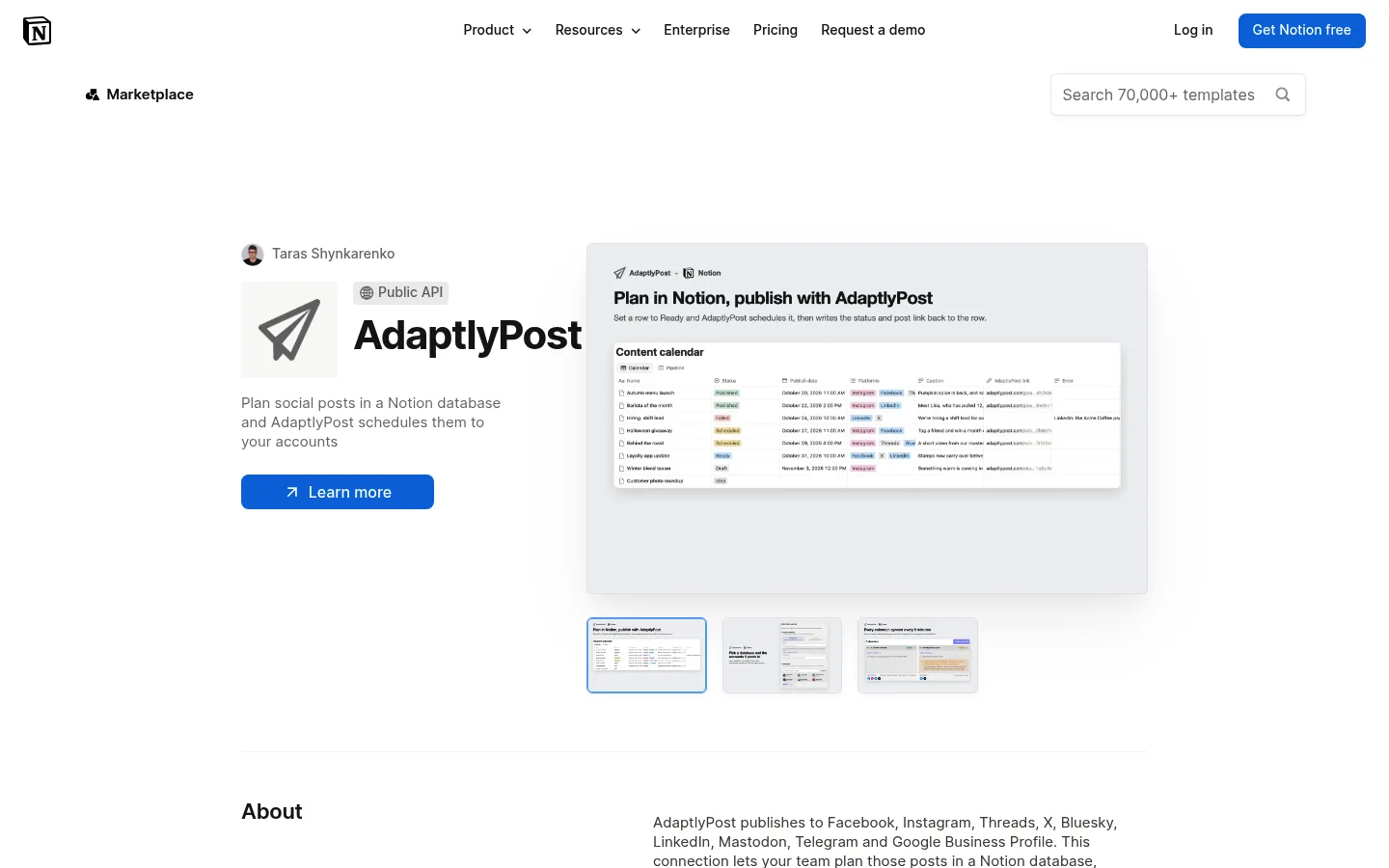
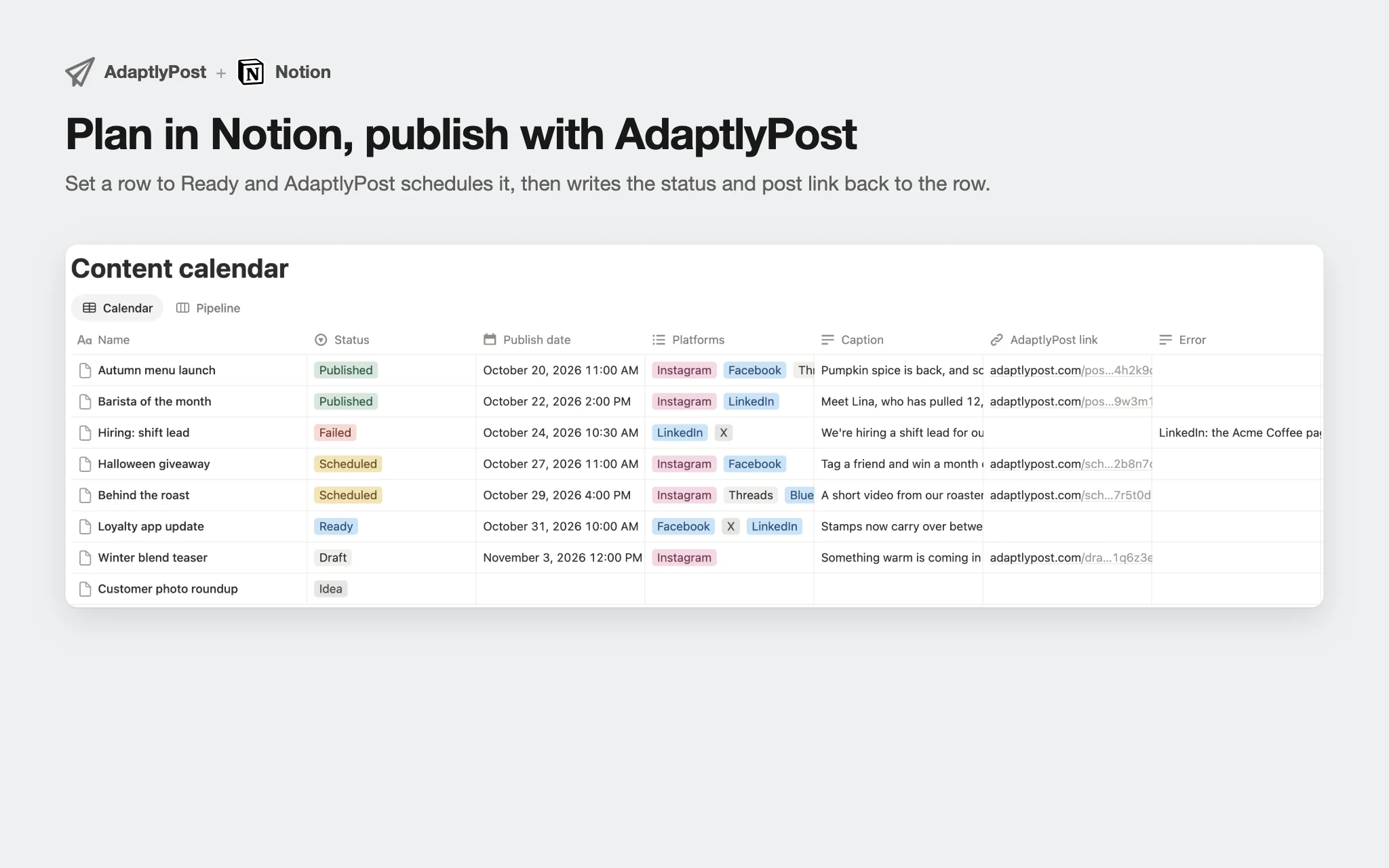
The short version: open Integrations > Notion in AdaptlyPost, connect Notion, pick a database and the accounts it posts to. Write the caption and a Publish date in a row, set Status to Ready, and within 5 minutes the row switches to Scheduled or Draft with a link to the post.
How does the AdaptlyPost Notion integration work?
The AdaptlyPost Notion integration reads your database every 5 minutes and turns each row whose Status is Ready into a post on the accounts you picked. After it creates the post, it writes the result back into the same row.
A row moves through these statuses:
- Idea is where a row starts. AdaptlyPost ignores it.
- Ready tells AdaptlyPost to pick the row up on the next sync.
- Draft or Scheduled is what AdaptlyPost writes once the post exists, along with a link in the AdaptlyPost link column.
- Published means the post went out. If some accounts failed, the Error column says so.
- Failed means the post did not go out, or the row could not become a post. The Error column says why.
Each sync handles up to 20 rows, oldest row first. If you set 50 rows to Ready at once, they go out over three syncs, so the last ones are scheduled about 15 minutes later. Need it sooner? The Sync now action on the calendar card starts a sync right away.
- Each caption is pasted in by hand the day before
- Posts go missing, get the wrong date or ship with last week's caption
- The database stays the place where you write and approve
- Within 5 minutes the row becomes a draft or scheduled post
- Status, post link and any error are written back to the row
Which columns does a Notion content calendar need?
A Notion content calendar for AdaptlyPost needs seven columns next to the page title: Caption, Publish date, Status, Media, Platforms, AdaptlyPost link and Error. You don't have to create them. AdaptlyPost adds any column the database is missing when you connect it and on every sync after that.
| Column | Notion type | What AdaptlyPost does with it |
|---|---|---|
| Name | Title | Used as the post text when Caption is empty |
| Caption | Text | The post text |
| Publish date | Date | The time a scheduled post goes out. It needs a time, not only a day |
| Status | Select | Idea, Ready, Draft, Scheduled, Published, Failed |
| Media | Files & media | Up to 10 JPG, PNG, GIF or WebP images, 20 MB each |
| Platforms | Multi-select | Limits a row to some of the calendar's accounts. Empty means all of them |
| AdaptlyPost link | URL | Written by AdaptlyPost, opens the post |
| Error | Text | Written by AdaptlyPost when a row fails |
One column can block the whole calendar. Status has to be a Select column. If your database already has a Status column of Notion's newer Status type, AdaptlyPost refuses it and asks you to rename the column or change its type to Select. Everything else you already track, like an owner, a campaign tag or a review checkbox, stays as it is. AdaptlyPost only reads and writes the columns in the table above.
If you are designing the calendar from scratch, our guide to how to create a social media content calendar covers the planning side: themes, cadence and who owns what.
How do you connect Notion to AdaptlyPost?
You connect Notion to AdaptlyPost from the Notion tab on the Integrations page, where you sign in to Notion and choose which pages and databases AdaptlyPost can see. The connection belongs to you, not to the workspace, and it follows you into every AdaptlyPost workspace you belong to.
- Open app.adaptlypost.com/integrations?tab=notion and click Connect Notion.
- In Notion's window, share the database you plan in, or the page you want a new database created under. AdaptlyPost only sees what you share here.
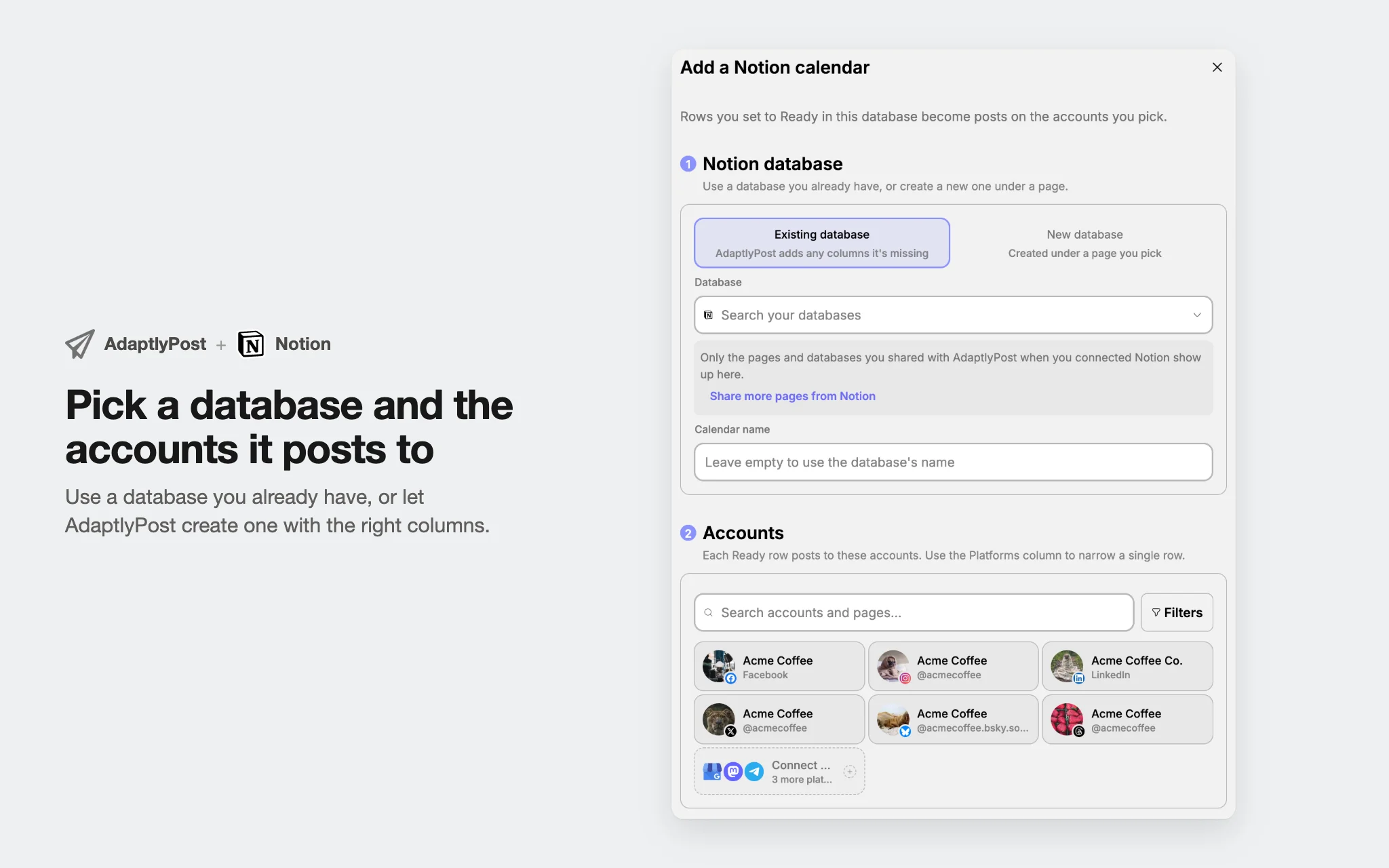
- Back in AdaptlyPost, click Add calendar.
- Pick Existing database to use one you have, or New database to have AdaptlyPost create "AdaptlyPost content calendar" under a page you pick.
- Give the calendar a name, or leave it empty to use the database's name.
- Pick the accounts each Ready row posts to, up to 20.
- Choose what happens to a Ready row: Save as draft or Schedule.
If the database you want is not in the list, Notion was never told to share it with AdaptlyPost. The Share more pages from Notion link in the same form reopens Notion's sharing screen.


AdaptlyPost
Start Your 7-Day Free Trial
All-platform analytics
Social Inbox
AI-powered assistant
Should Ready rows become drafts or scheduled posts?
Ready rows should become drafts while you test the calendar and scheduled posts once you trust it. The choice is per calendar, and you can change it from Edit on the calendar card.
- Save as draft creates the post in AdaptlyPost without a date. Someone reviews and publishes it from AdaptlyPost. The row shows Draft.
- Schedule creates the post for the row's Publish date. The row shows Scheduled, and the post goes out at that time.
Schedule mode is stricter about the row. The Publish date needs a time and has to be in the future. A row without a time, or with yesterday's date, fails with that reason in the Error column instead of posting at a random hour.
The mode also follows your workspace role. Schedule needs a role that can schedule posts, and Save as draft needs one that can create drafts. That is what makes a draft calendar useful for contributors and freelancers: they write and set rows to Ready in Notion, and an editor approves the drafts in AdaptlyPost. Our post on the content approval process shows how teams split those roles.
Which platforms can a Notion calendar post to?
A Notion calendar posts to nine platforms: Facebook pages, Instagram, Threads, X, Bluesky, LinkedIn, Mastodon, Telegram and Google Business Profile. AdaptlyPost supports 14 platforms in total. TikTok, YouTube, Pinterest, Tumblr and WordPress are left out of Notion calendars, so schedule those from the AdaptlyPost composer.
Every Ready row goes to all of the calendar's accounts unless the Platforms column says otherwise. Add a platform name such as Instagram, LinkedIn or Twitter/X, or the exact name of one connected account, and the row only goes to the accounts that match. If nothing matches, the row fails with the platforms it was looking for in the Error column.
Images in the Media column are copied into AdaptlyPost before the post is created, so Notion's file links expiring later does not break a scheduled post. Videos are not supported from Notion. Only JPG, PNG, GIF and WebP images up to 20 MB each, with at most 10 per row.
What happens after a row is posted?
After a row is posted, AdaptlyPost keeps checking the post and updates the row's Status to Published or Failed. You can tell how last week went without leaving Notion.
- Published with an empty Error column: every account published.
- Published with "some accounts failed" in Error: open the AdaptlyPost link to see which account refused it.
- Failed with a reason: the post failed to publish, or the row never became a post. Common reasons are a missing caption, a Publish date in the past, more than 10 images or an image that could not be added.
To retry a failed row, fix what the Error column names and set Status back to Ready. If you delete the post in AdaptlyPost, the row switches to Failed with "The post was deleted in AdaptlyPost", so the calendar never claims a post that no longer exists.
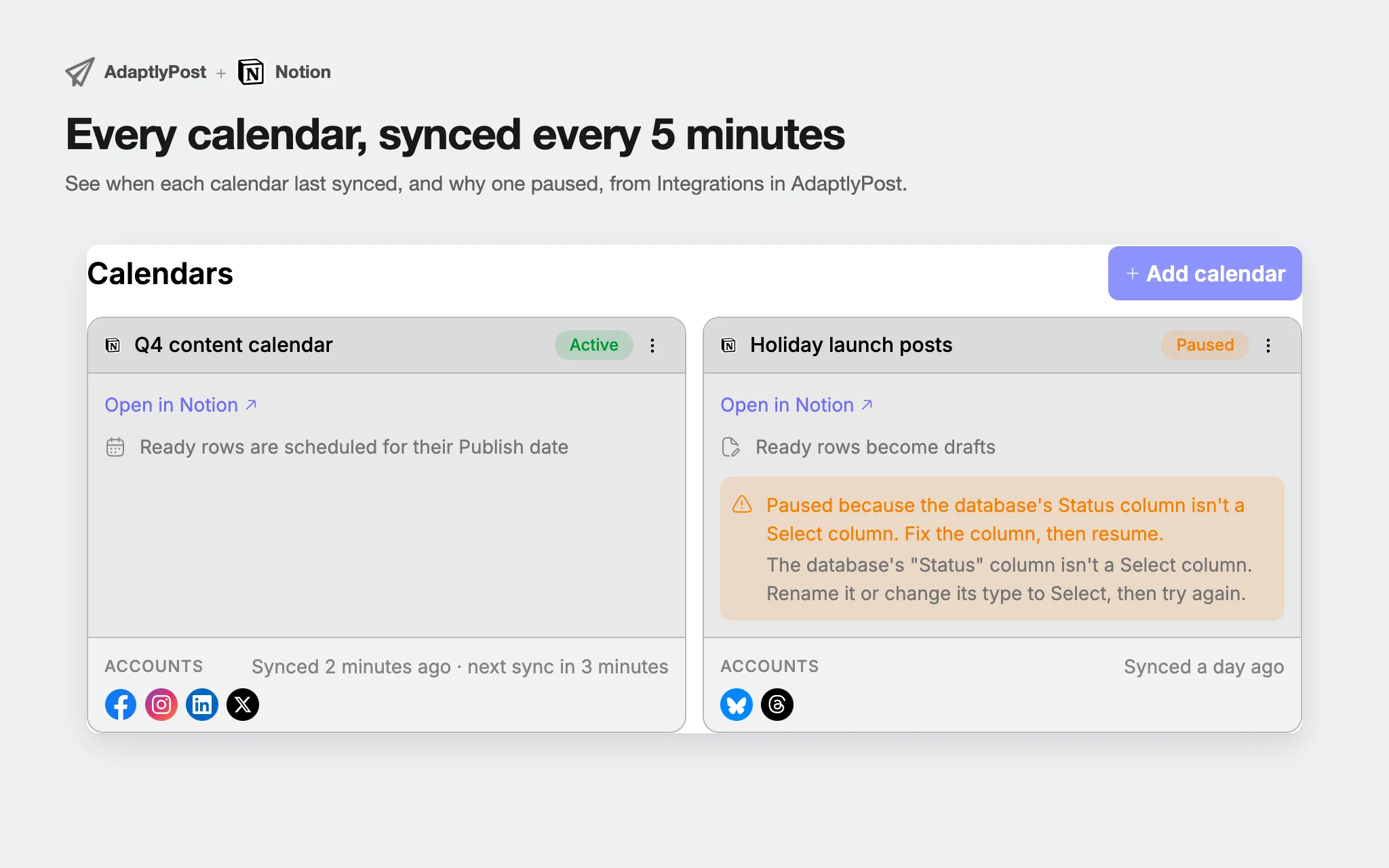
The Integrations page shows every calendar as a card with its mode, its accounts, when it last synced and when the next sync runs. You can add up to 10 calendars per workspace, for example one per brand or one per campaign.
Why did my Notion calendar pause?
A Notion calendar pauses when AdaptlyPost can no longer post from it safely, and the card says why. Fix the cause, then click Resume.
- The database was deleted or is no longer shared with AdaptlyPost.
- The Status column is not a Select column.
- The calendar's owner disconnected Notion, or the Notion connection expired.
- The owner can no longer post in this workspace. Editing or resuming the calendar hands it to you.
- The workspace's plan no longer covers posting.
- None of the calendar's accounts are connected anymore.
- Five syncs in a row failed. The last error is shown on the card.
Pausing never deletes anything. Deleting a calendar stops AdaptlyPost from reading the database, keeps the posts it already created, and leaves every row in Notion untouched.
When should you use Zapier, a spreadsheet or the AdaptlyPost calendar instead?
Use the Notion integration when your team already plans in Notion and wants the database to stay the source of truth. Other setups fit other teams.
- A spreadsheet works if you plan in Google Sheets or Excel. The social media calendar spreadsheet guide has a column layout, and a Zapier social media automation Zap turns new rows into posts.
- n8n gives you the same row-to-post flow on your own server, with the n8n social media automation guide as the starting point.
- The AdaptlyPost calendar is better if nobody needs Notion at all. The social media content calendar shows every scheduled post on one drag-and-drop grid.
- AI agents suit teams that write posts in a chat. The AdaptlyPost plugin for ChatGPT and the rest of the API and AI agents tools schedule posts from ChatGPT, Claude or your own scripts.
Frequently Asked Questions
Can Notion schedule social media posts on its own?
Notion has no built-in way to publish to Instagram, LinkedIn or any other social network. A Notion database can hold dates and captions, but posting needs a scheduler connected to the database. AdaptlyPost reads the database every 5 minutes and creates the posts for rows set to Ready.
AdaptlyPost
Start Your 7-Day Free Trial
All-platform analytics
Social Inbox
AI-powered assistant
Do I need a Notion template to use AdaptlyPost?
AdaptlyPost needs no template. Pick any database you already plan in, and AdaptlyPost adds the columns it is missing, or let AdaptlyPost create a new database called "AdaptlyPost content calendar" under a page you choose.
How often does AdaptlyPost check the Notion database?
AdaptlyPost checks each Notion calendar every 5 minutes and handles up to 20 Ready rows per check, oldest first. The Sync now action on the calendar card starts a check right away.
Can a Notion row post to only some accounts?
A Notion row posts to only some accounts when you fill its Platforms column. Use a platform name such as Instagram or LinkedIn, or the name of one connected account. An empty Platforms column sends the row to every account on the calendar.
Can I post videos from Notion?
AdaptlyPost posts images from the Media column of a Notion row, not videos. Each row takes up to 10 JPG, PNG, GIF or WebP images of up to 20 MB each. Upload videos in the AdaptlyPost composer instead.
What happens to Notion rows if I delete the calendar in AdaptlyPost?
Deleting a calendar in AdaptlyPost stops it from reading the Notion database and changes nothing in Notion. Rows keep their status, links and errors, and posts AdaptlyPost already created stay scheduled or published.
How many Notion calendars can I add to AdaptlyPost?
You can add up to 10 calendars per workspace, for example one per brand or one per campaign. Each calendar posts to up to 20 accounts. The Integrations page shows every calendar as a card with its mode, its accounts and when it last synced.
How do I retry a failed Notion row?
Fix what the Error column names, then set Status back to Ready. The next sync picks the row up again. Common causes are a missing caption, a Publish date in the past, more than 10 images or an image that could not be added.
Can Notion rows become drafts instead of scheduled posts?
Yes. Choose Save as draft when you add the calendar and each Ready row becomes a draft without a date, which someone reviews and publishes in AdaptlyPost. You can switch the calendar to Schedule later from Edit on the calendar card.
Why does AdaptlyPost reject my Status column in Notion?
Status has to be a Select column. If your database uses Notion's newer Status type, AdaptlyPost refuses it and asks you to rename the column or change its type to Select. Other columns you track, like an owner or a campaign tag, stay as they are.
Put this into practice with AdaptlyPost
Was This Article Helpful?
Let us know what you think!
See us more often in Google
One click marks AdaptlyPost as a preferred source, so our articles sit higher in your Top Stories, AI Mode, and AI Overviews.
Before you go...
AdaptlyPost
Schedule your content across all platforms
Manage all your social media accounts in one place with AdaptlyPost.
All-platform analytics
Social Inbox
AI-powered assistant
Related Articles
Add AdaptlyPost to Your Linear Integrations and Post Every Shipped Issue
Most Linear integrations pull work in. AdaptlyPost sends it out: each completed issue becomes a draft or scheduled post, from a template or an AI caption.
How to Set Up Zapier Social Media Automation With AdaptlyPost
Set up Zapier social media automation with one AdaptlyPost API token: turn sheet rows into scheduled posts, flag failed posts and email weekly analytics.
How to Set Up Hermes Agent Social Media Posting With the AdaptlyPost Plugin
Set up Hermes Agent social media posting with the AdaptlyPost plugin: two commands, one OAuth sign-in, 14 platforms, and an approval prompt before every write.