
TL;DR, Quick Answer
10 min readThe AdaptlyPost browser extension is listed on the Chrome Web Store, Microsoft Edge Add-ons and Firefox Add-ons. Install it, create an API token at app.adaptlypost.com/api-tokens, paste the token into the popup, and the accounts you connected in AdaptlyPost appear. Write a post, pick accounts, then post now, schedule it or save a draft. It posts to 13 networks, shows each network's character limit as you type, starts posts from a right-click on an image, a quote or a link, and sends a desktop notification when each network confirms.
The AdaptlyPost social media chrome extension puts a post composer in your browser toolbar, so you can publish or schedule to 13 networks without leaving the page you are reading. The same extension is listed on the Chrome Web Store, Microsoft Edge Add-ons and Firefox Add-ons, and it connects with one API token.
Most schedulers make you leave the page. You find an article worth sharing, open a new tab, log into a dashboard, paste the link, pick a time and go back. The extension cuts that trip down to a toolbar click, or a right-click on the thing you want to share.
The short version: install AdaptlyPost: AI Social Media Scheduler from your browser's store, create an API token at app.adaptlypost.com/api-tokens, click the toolbar icon and paste the token. The accounts you connected in AdaptlyPost show up. Write a post, pick accounts, and choose Post now, Schedule or Save draft.
What is the AdaptlyPost social media chrome extension?
The AdaptlyPost extension, listed as "AdaptlyPost: AI Social Media Scheduler", is a toolbar popup that writes, schedules and publishes posts to the social accounts in your AdaptlyPost workspace. It talks to the AdaptlyPost API at post.adaptlypost.com, so every post it sends lands in the same queue and calendar as posts made in the web app.
The extension is a fast path, not a second dashboard. The content calendar, analytics, approvals and team seats stay in the AdaptlyPost web app. The extension handles the post you want to write right now, from the page you are on.
Which browsers can you install it in?
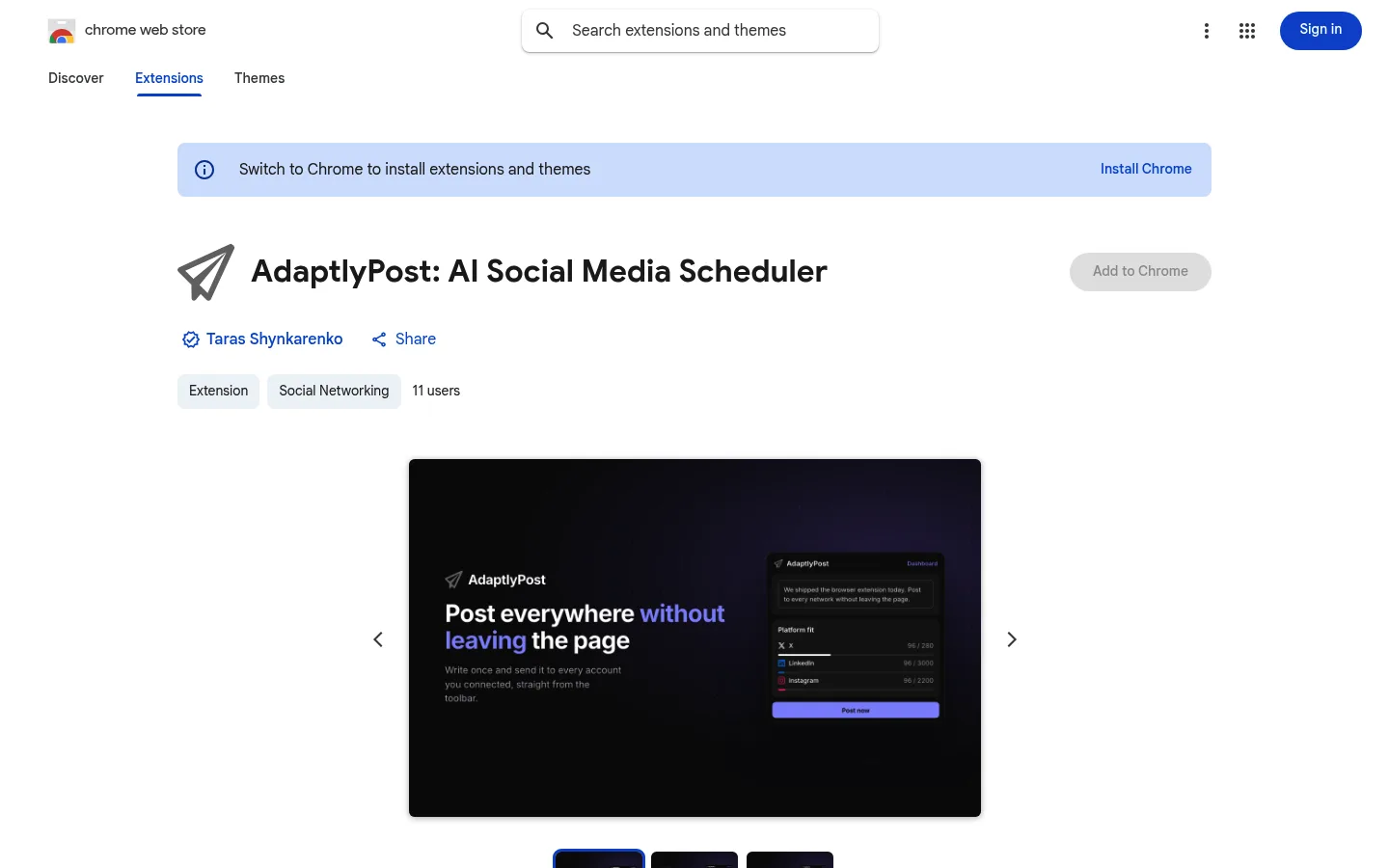
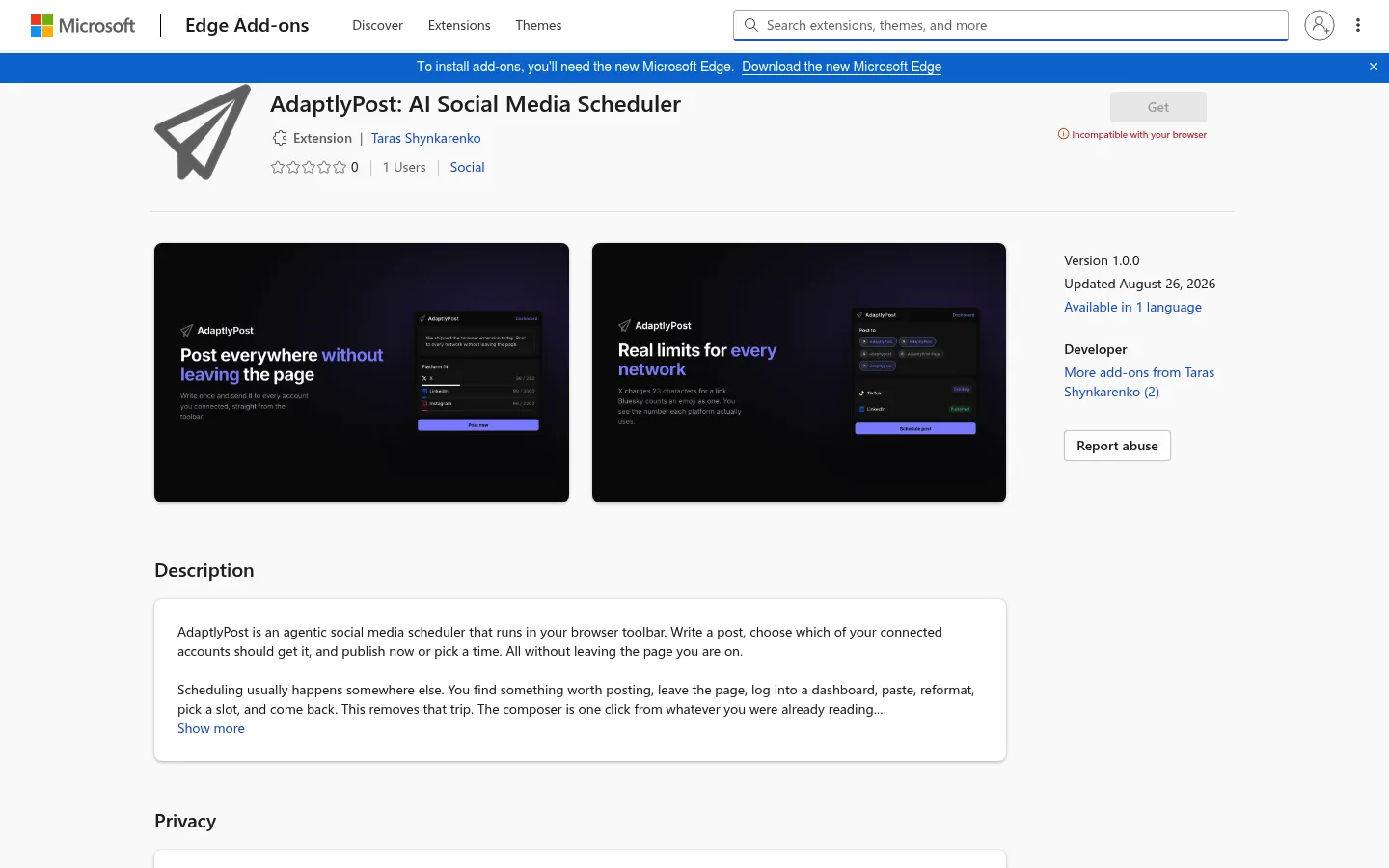
AdaptlyPost publishes the extension on three stores: the Chrome Web Store, Microsoft Edge Add-ons and Firefox Add-ons. All three install the same version 1.0.0 build, and the browser extensions page links to each listing.
- Chrome: AdaptlyPost on the Chrome Web Store, in the Social Networking category.
- Edge: AdaptlyPost on Microsoft Edge Add-ons, in the Social category.
- Firefox: AdaptlyPost on Firefox Add-ons.
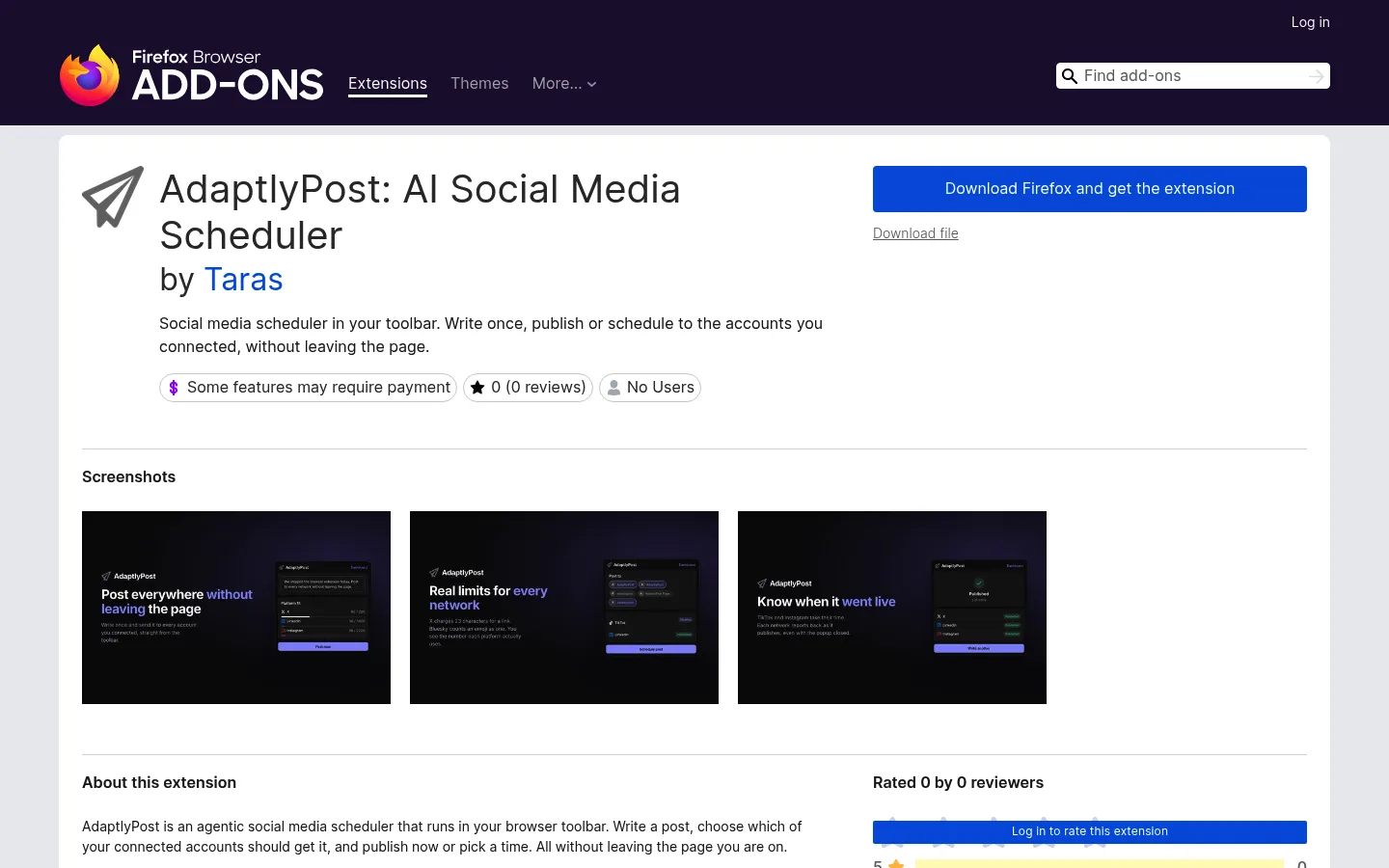
The browser extensions page lists an Opera version as coming soon.
What do you need before you install it?
You need an AdaptlyPost account with at least one social account connected, and an API token. Every AdaptlyPost plan includes the browser extensions, and every plan starts with a 7-day free trial.
You connect social accounts in the AdaptlyPost web app, not in the extension. The extension reads the accounts that already exist in your workspace and has no screen for adding new ones. If you connect a new account later, press Refresh on the Accounts step and it appears.
How do you connect the extension to your AdaptlyPost account?
The extension connects with an AdaptlyPost API token that you paste once into the popup. There is no sign-in form inside the extension.
- Install the extension from the store for your browser and pin it to the toolbar.
- Open the API tokens page in AdaptlyPost and create a token. The popup's "Create a token" button opens the same page.
- Copy the whole token. AdaptlyPost tokens start with
adaptly_, and the popup says so if you paste a partial one. - Click the AdaptlyPost icon in the toolbar, paste the token and press Connect.
- The composer opens with your connected accounts loaded.
The token stays in local browser storage on your device and goes only to the AdaptlyPost API. The authentication docs explain how tokens and workspace roles work. To cut the extension off, press Disconnect in the popup, or delete the token on the API tokens page, which stops it from reading or writing anything.
How do you post or schedule from the toolbar?
You post from the toolbar in three steps, Write, Accounts and Send, all inside the popup. The draft is saved as you type, so closing the popup does not lose it.

AdaptlyPost
Start Your 7-Day Free Trial
All-platform analytics
Social Inbox
AI-powered assistant
- Write. Type the caption and, if you want, press Add image. The extension takes one image per post, up to 8 MB.
- Accounts. Pick one or more accounts under "Post to". Below them, the extension shows each selected network's character count against its limit, where the feed cuts the caption off, and a warning when you go over.
- Send. Choose Post now, Schedule or Save draft. Schedule opens a date and time picker, and the extension sends your browser's timezone with the post, so the slot you pick is the slot it goes out. A preview of the post sits under the picker.
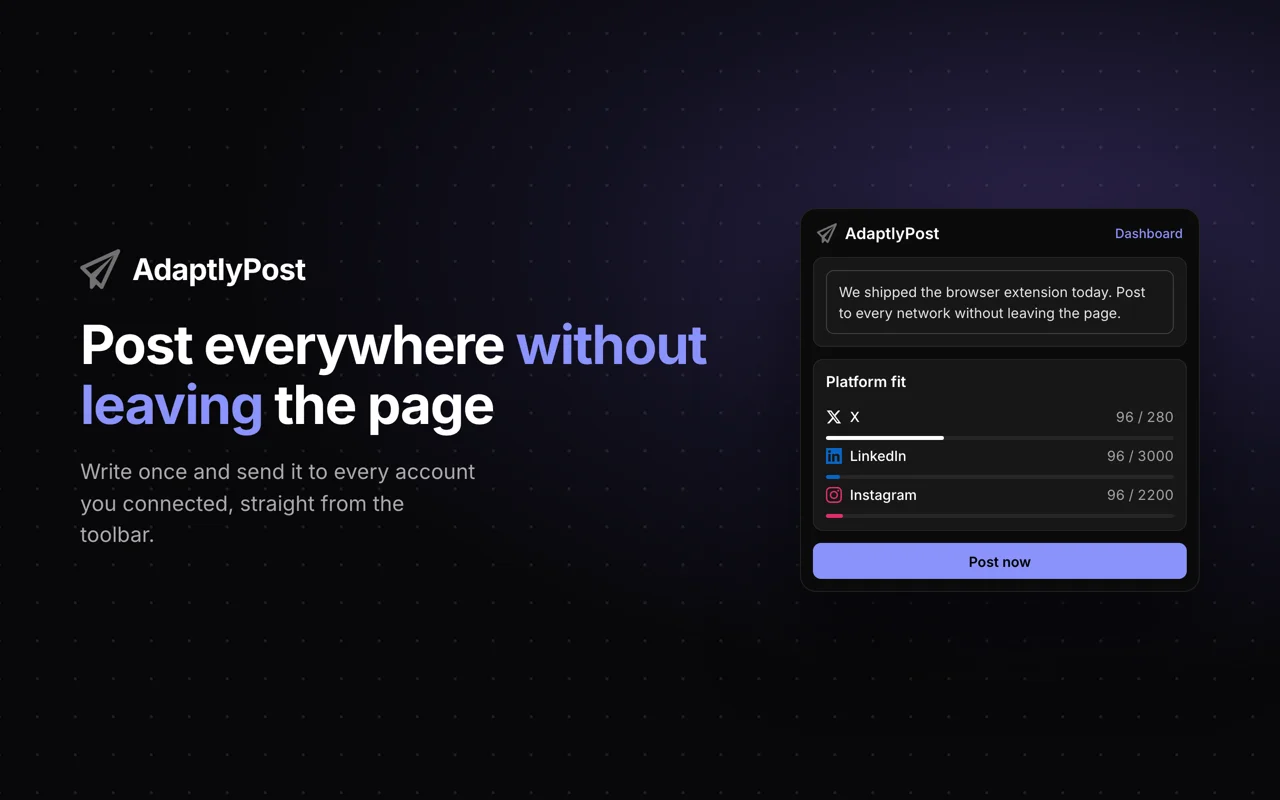
Posting to five accounts takes the same clicks as posting to one. Drafts and scheduled posts show up on your AdaptlyPost calendar, where you can edit them or publish a draft later.

How do you start a post from the page you are reading?
The extension adds three right-click entries that fill the composer from the page: "Post this image with AdaptlyPost", "Post this quote with AdaptlyPost" and "Post this link with AdaptlyPost". This is the reason to use an extension instead of another tab.
- Image. Right-click an image and the extension attaches it to the draft. Images over 8 MB, or files that are not images, are refused, and the toolbar badge shows "!".
- Quote. Highlight text, right-click it, and the extension adds the selection to the caption.
- Link. Right-click the page or a link and the extension adds the URL to the caption.
The toolbar badge shows "1" when the capture worked. Click the icon and the composer opens with the image or text already in it. Captured text goes under anything you had already typed, so you can collect a quote and a link into one post before you send it.
- Open a new tab
- Log into a dashboard
- Paste the link
- Pick a time
- Go back to the article
- Right-click the page or link
- Click the toolbar icon
- Pick accounts
- Choose Post now, Schedule or Save draft
Which social networks can the extension post to?
The AdaptlyPost extension posts to 13 networks: X, LinkedIn, Instagram, Facebook, Threads, Bluesky, Mastodon, Telegram, TikTok, Pinterest, YouTube, Google Business Profile and Tumblr. Each one has to be connected in your AdaptlyPost workspace first.
The extension counts characters the way each network does. X counts every link as 23 characters, and Bluesky counts graphemes, so an emoji costs one. These are the limits the composer checks against:
| Network | Limit | Feed cuts off at | Note from the extension |
|---|---|---|---|
| X | 280 | - | Every link counts as 23 characters |
| 3,000 | 210 | Feed cuts to "see more" at 210 characters | |
| 2,200 | 125 | Up to 30 hashtags | |
| 63,206 | 477 | Feed cuts to "see more" at 477 characters | |
| Threads | 500 | - | One hashtag per post |
| Bluesky | 300 | - | Counts graphemes, so emoji cost one each |
| Mastodon | 500 | - | Default server limit, some servers allow more |
| Telegram | 4,096 | - | Captions on media hold 1,024 |
| TikTok | 2,200 | 100 | Hashtags count toward the caption limit |
| 500 | 50 | Only the first 50 characters show on the pin | |
| YouTube | 5,000 | 157 | Up to 15 hashtags |
| Google Business Profile | 1,500 | - | Google removes posts with a phone number in the text |
| Tumblr | 32,768 | - | Tags go in the post settings, not the text |
The extension also warns when a link sits in the first line on a network that folds the caption, since that line is the only part people see before "see more". For posting one update everywhere from the web app, see multi-platform social media posting.

How do you know a post went live?
The extension keeps checking a post after you press Post now and sends a desktop notification when every network has answered. It asks the AdaptlyPost API for the result every 30 seconds for up to 10 minutes, even with the popup closed.
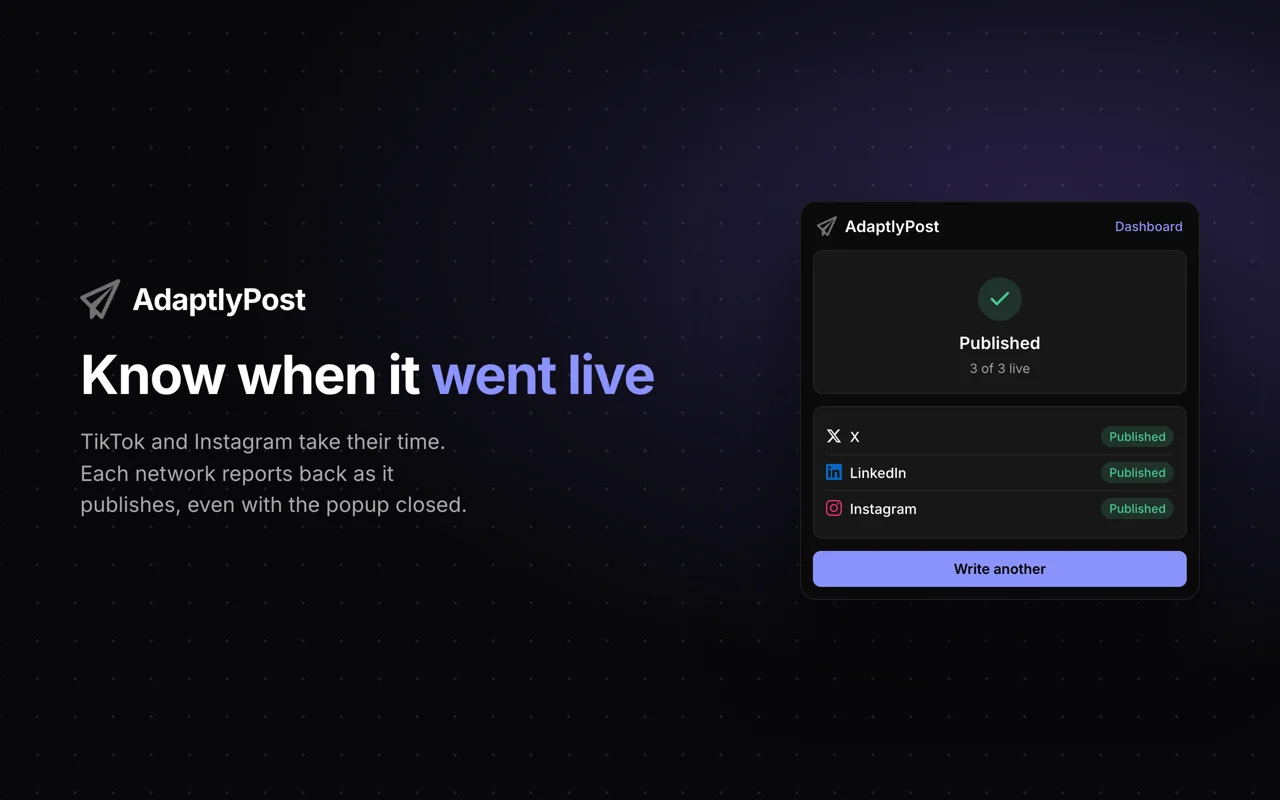
TikTok, YouTube and Instagram publish asynchronously, so a post can sit in processing for a minute and then fail on a platform rule. The notification names the networks where the post went live, or names each network that rejected it with the reason the platform gave. The toolbar badge tells the same story: "…" while it publishes, a check mark when everything went live, and "!" when one or more networks failed.
If a network turns the post down before it is sent, the result screen marks it Skipped with the reason. Open the dashboard from the popup to see the final state of any post.
What can a token do in the extension?
An AdaptlyPost API token carries the workspace role of the member who created it, and the extension shows only the actions that role allows. The popup asks the API what the token can do when it connects.
- Admin or Editor: Post now, Schedule and Save draft.
- Contributor: Save draft only. An Admin or Editor publishes the draft from the calendar.
- Viewer: nothing to send. The popup shows "This token can only read" and asks for a token with at least the Contributor role.
If the person who created the token loses access to the workspace, the token stops working and the popup says to ask an admin for a new one. If your plan does not include a feature, the popup shows the reason the API returns.
AdaptlyPost
Start Your 7-Day Free Trial
All-platform analytics
Social Inbox
AI-powered assistant
What permissions does the extension ask for, and what does it read?
The AdaptlyPost extension asks for six permissions (storage, contextMenus, activeTab, scripting, alarms and notifications) and two hosts: the AdaptlyPost API and Cloudflare R2 for image uploads. It has no content scripts, so it reads no page unless you use one of its right-click entries.
| Permission | What the extension uses it for |
|---|---|
| storage | Keeps your token, your unsent draft and your selected accounts on your device |
| contextMenus | Adds the three "with AdaptlyPost" right-click entries |
| activeTab | Reads the tab you right-clicked, at the moment you click |
| scripting | Reads that page's title or fetches the image you right-clicked |
| alarms | Checks a published post every 30 seconds until every network answers |
| notifications | Shows one desktop notification when a post you published finishes |
When you attach an image, the AdaptlyPost API returns a short-lived upload URL on Cloudflare R2 and the extension uploads the image there. The extension contains no trackers and sends nothing to analytics or advertising services. The Firefox listing declares two kinds of data: authentication information (the token) and website content (the post and anything you captured with a right-click).
What can't the browser extension do?
The AdaptlyPost extension sends one caption and at most one image per post, so videos, carousels and per-network captions stay in the web app. It also cannot connect social accounts, read analytics or answer comments.
- No video. The extension attaches images only. YouTube and TikTok video posts go through the web app.
- One caption for every network. The same text goes to each selected account. If X needs a shorter version than LinkedIn, write two posts or use the web app composer.
- No per-network settings. Options like a Pinterest board or YouTube privacy are set in the web app.
- No editing after sending. Change a scheduled post or publish a draft from the AdaptlyPost calendar.
I think that trade is right for an extension. It is the quick post, and the web app is where the planned week lives.
When should you use the web app, Zapier or an AI agent instead?
Use the extension for posts you write yourself while browsing. Use the web app when a post needs video, several images or a different caption per network, and use an automation or an agent when posts should come from somewhere other than your hands.
Zapier turns sheet rows and form answers into scheduled posts, as the Zapier social media automation guide shows. If you want Claude, ChatGPT or Cursor to draft and schedule for you, the setup is in how to post to social media with AI agents. All of them use the same AdaptlyPost API as the extension, so every post ends up on one calendar.
Frequently Asked Questions
Is the AdaptlyPost browser extension free?
The AdaptlyPost extension is free to install from the Chrome Web Store, Edge Add-ons and Firefox Add-ons, and it needs an AdaptlyPost account to post. Every AdaptlyPost plan includes the browser extensions, and every plan has a 7-day free trial.
Does the extension work in Microsoft Edge and Firefox?
The AdaptlyPost extension works in Chrome, Microsoft Edge and Firefox, with its own listing on each browser's store. All three listings install version 1.0.0 of the same extension, with the same composer, right-click entries and notifications.
Do I log in to the extension with my AdaptlyPost password?
The AdaptlyPost extension does not take a password. It connects with an API token that you create at app.adaptlypost.com/api-tokens and paste into the popup once. The token stays in local browser storage and goes only to the AdaptlyPost API.
Can I schedule posts from the extension?
The AdaptlyPost extension schedules posts with a built-in date and time picker on the Send step, using your browser's timezone. Scheduled posts land on your AdaptlyPost calendar. Your token needs the Admin or Editor role to schedule.
Can I post videos from the AdaptlyPost extension?
The AdaptlyPost extension attaches images only, one per post, up to 8 MB. Video posts for YouTube, TikTok or Instagram Reels go through the AdaptlyPost web app.
Does the extension read the pages I visit?
The AdaptlyPost extension reads a page only when you choose one of its three right-click entries, and only to capture the image, the highlighted text or the link you clicked. It has no content scripts and does not collect browsing history.
Which social networks can the AdaptlyPost extension post to?
The AdaptlyPost extension posts to 13 networks: X, LinkedIn, Instagram, Facebook, Threads, Bluesky, Mastodon, Telegram, TikTok, Pinterest, YouTube, Google Business Profile and Tumblr. Each network has to be connected in your AdaptlyPost workspace first.
Where do I get the API token for the extension?
You create the AdaptlyPost API token at app.adaptlypost.com/api-tokens. The "Create a token" button in the popup opens the same page. AdaptlyPost tokens start with adaptly_, so copy the whole string before you paste it.
Do I lose my draft if I close the extension popup?
The extension saves the draft as you type, so closing the popup does not lose it. After you press Post now, it keeps checking every 30 seconds for up to 10 minutes, even with the popup closed, and sends a desktop notification when every network has answered.
AdaptlyPost
Start Your 7-Day Free Trial
All-platform analytics
Social Inbox
AI-powered assistant
Why can I only save drafts in the extension?
An AdaptlyPost API token carries the workspace role of the member who created it. A Contributor token can only save drafts, and an Admin or Editor publishes them from the calendar. A Viewer token can only read, and the popup asks for a token with at least the Contributor role.
Put this into practice with AdaptlyPost
Was This Article Helpful?
Let us know what you think!
See us more often in Google
One click marks AdaptlyPost as a preferred source, so our articles sit higher in your Top Stories, AI Mode, and AI Overviews.
Before you go...
AdaptlyPost
Schedule your content across all platforms
Manage all your social media accounts in one place with AdaptlyPost.
All-platform analytics
Social Inbox
AI-powered assistant
Related Articles
How to Set Up Hermes Agent Social Media Posting With the AdaptlyPost Plugin
Set up Hermes Agent social media posting with the AdaptlyPost plugin: two commands, one OAuth sign-in, 14 platforms, and an approval prompt before every write.
Add AdaptlyPost to Your Linear Integrations and Post Every Shipped Issue
Most Linear integrations pull work in. AdaptlyPost sends it out: each completed issue becomes a draft or scheduled post, from a template or an AI caption.
How to Publish Social Posts Straight From a Notion Content Calendar
Turn a Notion content calendar into scheduled social posts: set a row to Ready and AdaptlyPost drafts or schedules it, then writes the status back.