
TL;DR, Quick Answer
12 min readSafe Instagram automation means using official API-approved scheduling tools to publish content at optimal times, freeing you to focus on community engagement.
This overview puts the topic Automate posts to Instagram into useful context. Queueing photos, Reels, and carousels through a Meta-approved scheduler is the only safe way to automate posts to Instagram at any real scale. It is the safest, most reliable method for running an Instagram presence at scale, eliminating the daily grind of opening the app, uploading assets, and hitting publish in real time.
This guide delivers a clear, step-by-step walkthrough for preparing your account, selecting a trustworthy tool, and designing a workflow that saves significant time without jeopardizing your account's standing.
Why Scheduling Instagram Content Has Become Essential
Manually publishing to Instagram day after day is a heavy tax on both your time and your creative reserves. Whether you are an agency coordinating content for a roster of clients or a brand trying to maintain a polished, consistent feed, the demands never let up. You need to produce strong content and release it at precisely the right moment, every single day. This relentless cycle frequently results in burnout and hurried, last-minute posts that do not serve any broader strategy.
This is exactly where thoughtful automation proves its value. To be explicit, we are not talking about shady bot services that violate platform guidelines by auto-commenting or mass-following accounts. Legitimate automation relies on officially sanctioned, API-integrated tools to line up content ahead of time.
The Core Problem: Manual Publishing Wastes Resources
The fundamental issue with doing everything by hand is inefficiency. It locks you into a reactive mode where your attention is consumed by the next immediate post rather than the big picture.
Where the inefficiency comes from:
- Repetitive uploads eat time: Opening Instagram, choosing media, writing captions, and selecting hashtags for each individual post adds up fast, particularly when you are responsible for multiple profiles.
- Optimal timing is hard to hit manually: Consistently posting during your audience's peak activity windows is difficult when those windows fall outside your normal working hours.
- No bandwidth for strategic thinking: When daily publishing tasks consume your schedule, there is almost no time left for analyzing performance data, spotting trends, or planning cohesive campaigns.
The Answer: A Systematized Workflow
Adopting an automated workflow fundamentally changes your relationship with Instagram, turning it from a daily obligation into a well-managed marketing channel. The primary gain is time. Rather than logging in repeatedly throughout the day, you can dedicate a single focused session to batch-creating and scheduling a full week or even a month of content.
Those reclaimed hours can go toward work that actually drives growth:
- Strategic planning: Dig into performance metrics, study emerging trends, and architect cohesive multi-week campaigns.
- Genuine community interaction: Spend time responding to comments and DMs in a personal, meaningful way -- the one area that should never be automated.
- Higher-quality creative work: With publishing logistics handled, you can channel your energy into producing better photos, more polished videos, and sharper graphic design.
Offloading the mechanics of publishing lets you concentrate on the distinctly human dimension of social media: building relationships, fostering conversation, and nurturing community.
Scheduling platforms also let you release content during peak engagement windows -- even late on a weekend evening -- without being tethered to your phone. For anyone working to scale content marketing, this kind of dependable consistency is foundational. For cross-platform strategies, see our broader guide on how to automate social media posts.
- Opening the app and uploading assets for every single post
- Missing peak engagement windows outside working hours
- No time left for performance analysis or campaign planning
- A week or month of content batched and queued at once
- Posts publish at peak times, even late on a weekend
- Reclaimed hours go to strategy and community replies
Step 1: Get Your Instagram Account Ready for Automation
Before linking any scheduling tool, your Instagram account needs to be configured correctly. The majority of connection errors and permission failures occur because these foundational steps were skipped. Doing this groundwork properly ensures a secure, stable link to any third-party platform.
The entire authorized automation ecosystem is built on Meta's official API (Application Programming Interface). Consider the API the sole legitimate pathway through which external tools can interact with Instagram. Only professional-tier accounts have access to this pathway.
Convert to a Professional Account
Why this matters: A standard personal Instagram profile is invisible to the API. Switching to either a Business or Creator account is mandatory for any scheduling tool to detect and connect with your profile. Meta reserved API access for professional use, and making this switch unlocks analytics, contact options, and the ability to grant third-party permissions.
How to do it:
- Open Instagram, navigate to your profile, and tap the menu icon.
- Go to Settings and privacy > Account type and tools.
- Choose Switch to professional account and follow the prompts to select a category that describes your activity.
Connect to a Facebook Business Page
Why this matters: This step is crucial and frequently overlooked. Since Meta owns Instagram, all business-level integrations and permissions flow through the Facebook Business Suite. Your Instagram professional account must be tied to a Facebook Business Page for a scheduling tool to authenticate it. Even if you never post to Facebook, the Page must exist and be linked. It functions as the administrative backbone of your Instagram business identity.

AdaptlyPost
Start Your 7-Day Free Trial
All-platform analytics
Social Inbox
AI-powered assistant
This Facebook Page link is the mechanism that allows an external tool to verify your ownership of the Instagram account without ever requiring your password. It is a fundamental security safeguard.
How to do it:
- If no Facebook Page exists yet, the Instagram app will guide you through creating one during the professional account switch.
- If a Page already exists, you can connect it during the same conversion flow.
Confirm Your Facebook Page Permissions
Why this matters: Having the correct role on the linked Facebook Page is essential. A huge number of "permission denied" errors trace back to this single issue. If you do not hold Admin status on the connected Facebook Page, every attempt to authorize a scheduling tool will be blocked.
How to verify your role:
- Open your Facebook Business Page.
- Click Manage and locate Page Access in the navigation menu.
- Your profile should appear under "People with Facebook access" with full control (Admin). If your role is anything less, the Page owner will need to upgrade your permissions.
Completing these three steps -- professional account conversion, Facebook Page linkage, and admin-level permissions -- eliminates roughly 90% of the connection issues people encounter.
Step 2: Pick and Connect a Scheduling Tool
With your Instagram account properly set up, the next step is selecting an automation platform. The market divides into two clear categories: safe, API-approved schedulers and unauthorized bots that risk getting your account suspended.
Understanding the distinction is critical. Rogue bots typically request your Instagram password -- an immediate warning sign. They operate by scraping Instagram's interface and mimicking human actions in ways that breach platform policies. Trustworthy tools never request your login credentials. They operate through the official Meta API and authenticate you via a secure Facebook popup.
Criteria for Choosing a Safe Tool
When assessing schedulers, prioritize safety, efficiency, and strategic capability.
- Official API access: The tool must explicitly state that it uses the Instagram Graph API. This confirms it complies with Meta's rules and will not put your account at risk.
- Visual content calendar: A drag-and-drop calendar gives you a bird's-eye view of your content plan, making it easy to identify scheduling gaps and maintain grid consistency.
- Accurate post previews: The tool should render an exact replica of how your post will appear on Instagram before it publishes, helping you catch cropping issues or formatting problems.
- Secure authentication flow: The connection process must redirect you to Facebook for permission granting. Any tool that asks you to type your Instagram username and password directly into its own interface should be avoided.
The shift toward professional-grade tools is well underway: 49% of brands already use some form of social media automation. Staying competitive means adopting the right systems. For more on this trend, see Moengage.com.
Connecting Your Account Step by Step
Linking your Instagram account to a scheduler should be a secure, straightforward process that uses the official Facebook authentication flow. At no point should you be asked for your Instagram password.
The connection walkthrough:
- Initiate the connection: In your scheduling tool, click the option to add a social account. Selecting Instagram should redirect you to Facebook.
- Log in through Facebook: A Facebook authentication window appears. Sign into the Facebook account that has Admin rights on the Business Page linked to your Instagram profile.
- Choose your Instagram business profile: Meta will present a list of Instagram Business Accounts tied to your Facebook profile. Select the correct one.
- Select the linked Facebook Page: A list of your Facebook Pages appears next. Pick the specific Page connected to your Instagram account.
- Approve all permissions: The final screen displays the permissions the tool requires, such as "publish content" and "access insights." You must grant all of them for full functionality. These permissions use the secure API and can be revoked at any time from your Facebook Business settings.
After approval, you are redirected back to your scheduler with your Instagram account connected and operational. For help comparing platforms, our guide on the leading Instagram post scheduler tools evaluates the top available options.
Step 3: Design an Effective Content Workflow
A scheduling tool is only as useful as the content pipeline supplying it. A streamlined workflow moves you from reactive, day-of posting to proactive content batching -- preparing an entire week or month of material in one or two concentrated work sessions.

Organize Your Media Assets in One Place
The problem: Hunting for visuals scattered across desktop folders, email threads, and your phone's camera roll is a major productivity drain.
AdaptlyPost
Start Your 7-Day Free Trial
All-platform analytics
Social Inbox
AI-powered assistant
The fix: Adopt a centralized, cloud-based media library such as Google Drive or Dropbox. Set up a straightforward folder hierarchy to keep everything organized.
- /Instagram Content/
- /Ready to Schedule/ (Finalized, edited assets)
- /Content Ideas/ (Raw photos, user-generated content, inspiration)
- /Archived Posts/ (Previously published visuals)
Many scheduling tools offer direct cloud storage integrations, letting you import media straight into your calendar without the download-and-reupload dance. To preserve visual quality, familiarize yourself with the optimal export settings for Instagram to avoid compression artifacts.
Create Reusable Caption and Hashtag Templates
The problem: Composing a fresh, compelling caption from scratch for every single post is mentally draining.
The fix: Develop reusable templates aligned with your core content categories.
- Educational content: A hook sentence, three key bullet points, and a call-to-action encouraging saves.
- Behind-the-scenes posts: A narrative format that shares a personal observation or a peek into your process.
- Product features: A structure that names a problem, positions your product as the answer, and highlights key advantages.
Apply the same template logic to hashtags. Build tiered hashtag sets you can mix and match:
- Broad industry tags: (e.g., #socialmediamarketing) - High search volume.
- Niche community tags: (e.g., #contentstrategytips) - More targeted reach.
- Branded tags: (e.g., #YourBrandName) - Unique to your identity.
Most scheduling platforms let you store hashtag groups and automatically drop them into the first comment, keeping captions clean.
Schedule Each Post Type According to Spec
To prevent publishing failures, you must respect the technical specifications that Instagram's API enforces for each content format.
- Single Image Posts: The simplest to automate. Use a square (1:1) or vertical (4:5) ratio for maximum feed visibility.
- Carousel Posts: You can schedule up to 10 slides. Every slide in the carousel must share the same aspect ratio. If dimensions differ, the tool will crop all slides to match the first one.
- Reels: Fully schedulable when they are between 3 seconds and 15 minutes in duration, use a 9:16 aspect ratio, and are saved in
.MP4or.MOVformat.
If something goes wrong, our troubleshooting guide for Instagram scheduled posts not working offers detailed diagnostic steps.
Knowing the API's Boundaries and Working Within Them
Automation is powerful, but understanding its constraints is essential for setting realistic expectations and sustaining a healthy content strategy.
Stories Cannot Include Interactive Stickers
This is a significant API limitation. You cannot schedule Instagram Stories that contain interactive elements like polls, quizzes, question boxes, or sliders. Meta intentionally restricts these high-engagement features to manual, in-app creation to preserve their real-time, participatory nature.
The practical workaround: Most schedulers offer a push-notification system.
- You load the Story's base media (an image or video) into the tool.
- At the designated time, a push notification arrives on your phone.
- Tapping the notification opens the asset inside the Instagram app, where you manually add stickers before publishing.
Daily Posting Caps
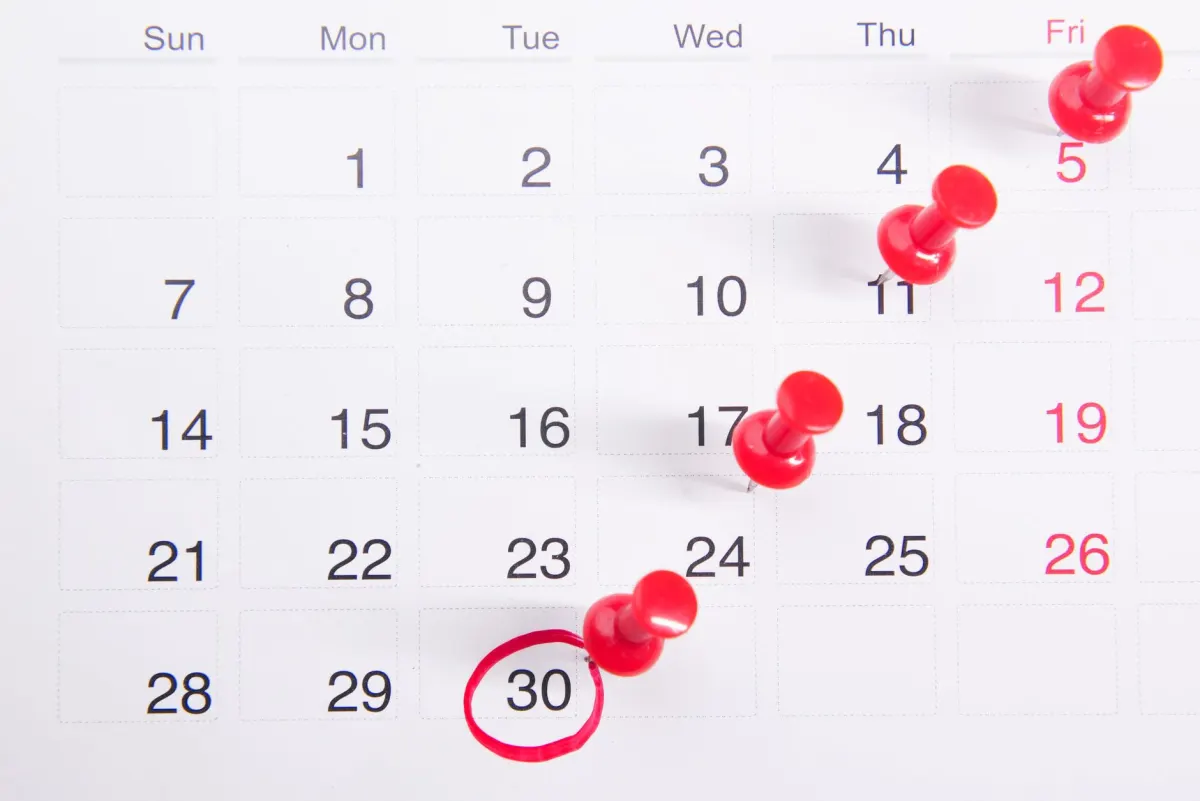
Instagram's API enforces a ceiling of 25 posts within any 24-hour window for a single account. That said, you should never aim anywhere near this limit. Excessive posting leads to audience fatigue and diminishing engagement returns.
A sensible target is 1-2 well-crafted posts per day. This preserves consistency without overwhelming your followers. The purpose of automating Instagram posts is to build a sustainable, high-caliber presence -- not to saturate the feed. For additional strategic guidance, explore these best practices for social media.
Common Questions Answered
Will automating posts get my account banned?
No. You will not face any penalties for scheduling posts through an official, Meta-sanctioned tool that uses the Instagram Graph API. Account bans stem from unauthorized bots that scrape data, require your password, or execute spam-like behaviors such as automated following or commenting.
AdaptlyPost
Start Your 7-Day Free Trial
All-platform analytics
Social Inbox
AI-powered assistant
What distinguishes scheduling from broader automation?
Scheduling is a specific, safe subset of automation focused exclusively on publishing content at a future date and time. This is what the vast majority of social media professionals mean when they reference "automation."
The broader umbrella of "automation" can also encompass riskier actions that the official API does not support, such as auto-DMs or auto-likes. For safe and effective Instagram management, scheduling is the only form of automation you should employ.
Why are interactive Story stickers unsupported?
Meta's official Instagram API deliberately excludes automatic publishing of interactive elements like polls, quizzes, and question stickers. This is a design choice to keep these features rooted in real-time, native-app experiences. You can schedule the underlying Story media, but stickers must be applied manually right before publication.
How many posts should I schedule daily?
The technical cap is 25 per 24 hours, but an effective, sustainable approach prioritizes quality. For the majority of accounts, 1-2 strong posts per day strikes the right balance between maintaining engagement and avoiding audience overload.
What counts as a Meta-approved scheduling tool?
A tool that connects through the official Instagram Graph API and authenticates you with a secure Facebook popup rather than asking for your Instagram password. That API access is limited to professional accounts, so the tool should also confirm you're on a Business or Creator profile before it lets you queue anything.
Do I need a Facebook Business Page if I never post to Facebook?
The Page has to exist and stay linked even if you never publish to it. It works as the administrative backbone that lets a scheduling tool verify you own the Instagram account, since all business-level Instagram permissions route through Facebook Business Suite.
What Instagram account type do I need before I can automate posts?
Switch to a Business or Creator account first. A standard personal profile is invisible to the Instagram API, so no scheduler can detect or connect to it until you make that switch.
Can I schedule an Instagram Story that includes a poll or quiz sticker?
Not directly. The API blocks automatic publishing of interactive stickers, so most schedulers instead send a push notification at the scheduled time that opens the base image or video inside the Instagram app for you to add the sticker and post manually.
How many images can I put in one scheduled Instagram carousel?
Up to 10 slides. Every slide needs the same aspect ratio, because the tool will crop them all to match whatever ratio the first slide uses if they don't line up.
What video specs does a scheduled Reel need to meet?
A scheduled Reel needs to run between 3 seconds and 15 minutes, use a 9:16 aspect ratio, and be saved as an MP4 or MOV file. Missing any of these specs is a common reason a scheduled Reel fails to publish.
Why does my scheduling tool redirect me to a Facebook login instead of Instagram?
The Facebook login redirect is the secure authentication flow official tools are required to use. It lets the platform confirm you own the Instagram account and hold Admin rights on its linked Facebook Page without ever handling your Instagram password.
What permissions does a scheduling tool need to publish on my behalf?
A scheduling tool asks for permissions like publishing content and accessing insights, and you need to approve all of them for full functionality. These run through the official API, so you can review or revoke them at any time from your Facebook Business settings.
Why do I keep getting a "permission denied" error when connecting a scheduler?
A permission denied error usually means you don't hold Admin status on the Facebook Page linked to your Instagram account. Check Page Access under Manage on the Facebook Page and confirm your profile shows full control, since anything less blocks the authorization.
Where should I keep my media assets before scheduling them?
Centralize everything in one cloud library, such as Google Drive or Dropbox, instead of spreading files across folders, email threads, and a camera roll. A simple structure with folders for ready-to-schedule, content ideas, and archived posts keeps a batch-scheduling session fast.
Your Instagram Automation Checklist
To set up a safe, efficient automation workflow, follow this sequence:
AdaptlyPost
Start Your 7-Day Free Trial
All-platform analytics
Social Inbox
AI-powered assistant
- Account Preparation:
- Switch your Instagram profile to a Business or Creator account.
- Link it to a Facebook Business Page.
- Verify you have Admin permissions on that Facebook Page.
- Tool Selection:
- Pick a scheduler that operates via the official Instagram Graph API and never requests your password.
- Confirm the tool includes a visual calendar and post preview functionality.
- Workflow Design:
- Centralize all media assets in a cloud-based library.
- Build reusable templates for captions and hashtag groups to accelerate content creation.
- Follow the technical specifications for images, carousels, and Reels.
- Ongoing Best Practices:
- Target 1-2 posts per day to sustain quality and consistency.
- Use the push-notification workaround when scheduling Stories with interactive stickers.
- Invest the time you save into genuine, personal community engagement.
Put this into practice with AdaptlyPost
Was This Article Helpful?
Let us know what you think!
See us more often in Google
One click marks AdaptlyPost as a preferred source, so our articles sit higher in your Top Stories, AI Mode, and AI Overviews.
Before you go...
AdaptlyPost
Schedule your content across all platforms
Manage all your social media accounts in one place with AdaptlyPost.
All-platform analytics
Social Inbox
AI-powered assistant
Related Articles
Useful Context - Best AI Tool to Schedule Social Media Posts
Seven steps from calendar to queue, plus what to check in a social post scheduler UK teams use daily: time zones, approvals, and platform coverage.
How to Schedule Instagram Stories (2026) - Full Guide
Business Suite queues Stories free with a Page attached, and third-party tools add previews. Both routes step by step, plus the timing that keeps taps up.
Answered in Context - How to Make a Poll on Instagram
The poll sticker sits in Stories alone, so how to make a poll on Instagram never involves a feed post. Results last 24 hours unless you save a Highlight.