
TL;DR, Quick Answer
8 min readSchedule Instagram posts and Reels with AdaptlyPost in a few clicks, troubleshoot common scheduler issues by refreshing tokens and verifying media specs, and use a content calendar to post consistently at optimal times.
How to Schedule Anything on Instagram: key strategies
This guide answers the question: Can you schedule Instagram reels 2026. Sorting out how to schedule Instagram photo uploads is the easy half; pulling one back, editing a queued Reel, or working out why a tool stopped publishing overnight is where people actually get stuck. All three are covered below.
We will cover the entire workflow using AdaptlyPost, an affordable scheduling platform designed for creators and lean teams, so you can:
- Plan your content in advance without being tied to your phone.
- Publish at the moment your audience is most active, regardless of your own schedule.
- Maintain a steady posting cadence without burning out.
By the time you finish reading, you will understand exactly how to schedule every type of Instagram content, resolve the most common problems, and fine-tune your approach for the 2026 algorithm landscape. Let us get into it.
Scheduling Posts and Reels: A Step-by-Step Walkthrough
How to Queue Up Instagram Posts
-
Link your Instagram account
- In AdaptlyPost, navigate to Brands > Social Accounts > Connect Instagram and complete the quick authorization flow.
-
Upload your content
- Add a single photo, a multi-image carousel, or a video file.
-
Write your caption or use the AI caption tool
- The AI-powered caption generator draws on your brand voice and audience profile to suggest compelling text.
-
Select "Publish Now" or choose a specific date and time
- The integrated calendar displays your local timezone alongside suggestions for optimal posting windows.
-
Tap "Schedule" and move on
- Your post will appear under Dashboard > Posts > Scheduled.
(Curious about the maximum number of posts you can schedule? Every paid AdaptlyPost plan supports unlimited scheduled posts, so there is no ceiling.)
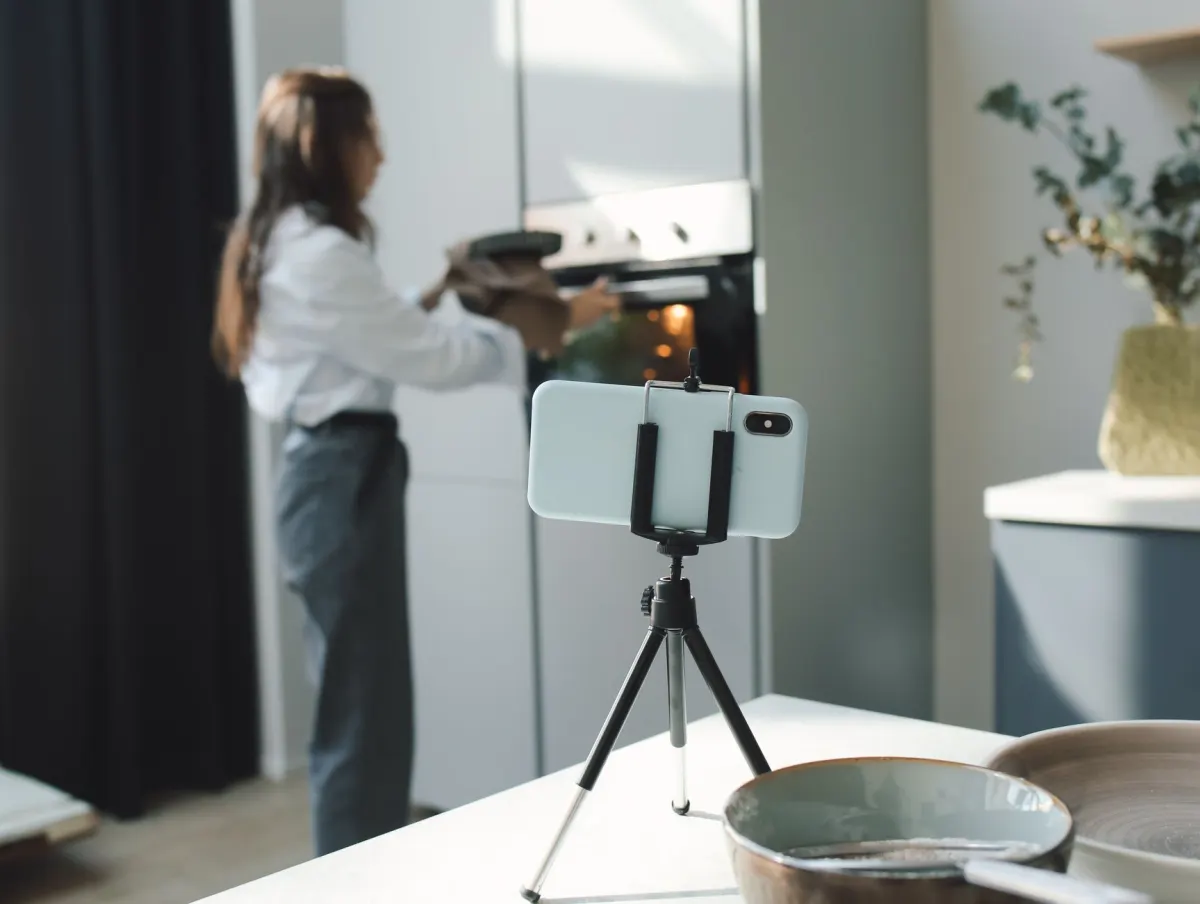
How to Queue Up Instagram Reels
- Upload your Reel video file
- Select a cover frame and write the caption
- Pick a publish time -- you can schedule Reels up to 75 days in advance.
- Hit "Schedule" and it drops right into your content calendar.
Helpful hint: Design your Reel using Canva's mobile-friendly templates, export it as a video file, then upload it to AdaptlyPost.
What About Scheduling Instagram Direct Messages?
Automating DM delivery is not currently supported by Instagram's API. The workaround for now is to set up saved replies within the Instagram inbox and send them manually once your scheduled post goes live.
- Single photos and multi-image carousels
- Video Reels, queued up to 75 days ahead
- Publish times set to your local timezone
- Instagram Direct Messages
- Workaround: saved replies sent by hand once the post goes live
Modifying, Cancelling, or Removing Scheduled Content
Wondering "how do I remove a scheduled Instagram post?" or "can I change a post after scheduling it?" Here is the process inside AdaptlyPost:
- Go to Dashboard > Posts > Scheduled
- Click the post you want to adjust.
- Pick from three options:
- Edit -- modify the media, update the caption, or shift the publish time, then press Save.
- Cancel -- pulls the post out of the active queue.
- Delete -- permanently removes the post from your system.
(That also covers how to cancel a scheduled Instagram post -- simply select "Cancel" and it is done.)
For a bird's-eye view, switch to Calendar View to see all your upcoming Instagram posts organized by day and hour. From there you can drag and drop to reschedule or click any item to make quick edits.

AdaptlyPost
Start Your 7-Day Free Trial
All-platform analytics
Social Inbox
AI-powered assistant

Fixing "Instagram Scheduler Not Working" Issues
Few things are more frustrating than a broken content queue. If you have ever searched for "instagram scheduler not working" in a moment of panic, work through these solutions first:
-
Reauthorize your Instagram connection
- Head to Settings > Social Accounts and click the Refresh Button. Authorization tokens expire on a regular cycle, and a fresh OAuth handshake resolves the issue most of the time.
-
Confirm your media meets Instagram's specifications
- Photos: JPG or PNG, 8 MB maximum, aspect ratio between 4:5 and 1.91:1
- Reels: MP4 or MOV, 100 MB maximum, 9:16 aspect ratio, 90 seconds or less Files that fall outside these parameters get silently rejected by Instagram.
-
Double-check the scheduled time
- Instagram will not accept a publish time that has already passed, even by a single minute.
- Verify that your timezone in AdaptlyPost matches your actual location.
-
Verify your account type and permissions
- Your Instagram profile must be set as a Business or Creator account and linked to a Facebook Page. Personal profiles do not have API publishing access.
-
Attempt a direct publish test
- Try posting the same media through the Instagram app itself. If that fails too, the problem is on Instagram's end -- likely a temporary service disruption or policy change.
Frequently Asked Questions
How many posts can you schedule on Instagram?
With any AdaptlyPost paid plan, you can schedule an unlimited number of posts and Reels with no hard limit. Queue up a week or an entire year of content -- the choice is yours.
How do you view your scheduled posts on Instagram?
Open Dashboard > Posts within AdaptlyPost. Every upcoming post is displayed in a timeline organized by day and time. Click on any entry to preview it, make edits, cancel it, or remove it entirely. If you prefer to check through Instagram directly, open Meta Business Suite and navigate to "Posts" to find your scheduled items.
How do you edit a post that has already been scheduled?
Navigate to Dashboard > Posts > Scheduled, select the post, update the caption, swap the media, or change the publish time, then click Save.
How do you delete a scheduled post?
From the Scheduled view, click the post in question, choose Delete, and confirm the action. The post is removed from your queue immediately.
How do you cancel a scheduled post without deleting it?
Select the post and click Cancel. This converts it into a draft so you can revisit and reuse the content later without losing any of your work.
Can you schedule Instagram DMs?
Not at this point. Instagram's API does not support automated direct messaging. You can, however, prepare saved replies within Instagram's inbox and send them by hand once your scheduled post is published.
Can you schedule Instagram carousel posts?
Multi-image carousels queue the same way as single photos in AdaptlyPost. Upload the full set of images during the upload step, write the caption, and pick a publish time like any other post. There is no separate carousel tool or extra step.
How far in advance can you schedule an Instagram Reel?
AdaptlyPost lets you queue a Reel up to 75 days ahead of the publish date. Pick the date and time during the Reel scheduling flow, and it drops into your content calendar until that slot arrives.
AdaptlyPost
Start Your 7-Day Free Trial
All-platform analytics
Social Inbox
AI-powered assistant
What account type do you need to schedule Instagram posts?
Your Instagram profile needs to be set as a Business or Creator account and linked to a Facebook Page. Personal profiles do not have API publishing access, so a scheduling tool cannot post on their behalf. Switching account types happens inside the Instagram app before you connect AdaptlyPost.
Why does Instagram reject a scheduled photo or Reel?
Media that falls outside Instagram's specs gets silently rejected, with no error message pointing to the cause. Photos need to be JPG or PNG under 8 MB with an aspect ratio between 4:5 and 1.91:1. Reels need to be MP4 or MOV, under 100 MB, 9:16, and 90 seconds or less.
The Importance of Scheduling for Instagram Growth
Talk to any successful creator or brand on Instagram and they will tell you the same thing: sustainable results come from consistent publishing, not from sporadic bursts of activity. Here is why maintaining a proper Instagram content calendar paired with a dependable scheduling tool is essential in 2026:
- The algorithm rewards regular posting Instagram's feed and Explore ranking systems favor accounts that publish on a predictable schedule. Skipping even a day or two can drag down your average engagement rate, while maintaining a steady rhythm teaches the algorithm to prioritize your content.
- You reach your audience at exactly the right moment Your followers may be spread across multiple time zones, and your ideal posting window might fall at 3 AM your local time. Scheduling ensures your content appears when people are actually scrolling, not only when you happen to be available.
- Batch production leads to higher quality Sitting down to create an entire week of content in a single session frees up cognitive resources. Rather than scrambling for today's post idea, you can devote attention to crafting better captions, selecting stronger visuals, and writing more effective calls to action.
- Strategy replaces chaos A visual calendar lets you spot gaps in your publishing schedule, balance educational content against promotional material, and coordinate product launches with seasonal events or influencer collaborations -- all without last-minute scrambling.
- Performance data guides your decisions Scheduling tools log the exact publish time alongside engagement metrics for every post. This historical data makes it straightforward to refine your hashtag approach, replace underperforming time slots, and invest more in what produces results.
- Collaboration becomes effortless Whether you work alone or as part of a small team, a shared content queue keeps everyone informed. Designers, copywriters, and approvers can all review posts before they go live, eliminating the need for endless message threads.
- You free up time for genuine engagement The minutes or hours you reclaim by not posting manually can go toward answering comments, replying to DMs, and participating in hashtag conversations -- activities the algorithm values just as highly as fresh content.
The bottom line: scheduling transforms Instagram from an unpredictable chore into a reliable growth channel. Tools like AdaptlyPost streamline the process with unlimited queuing, AI-generated captions, and bulk scheduling of up to 100 posts, letting you focus your energy on the creative work while the calendar handles the logistics.
- Posting whenever you remember
- Missing the hours your audience is actually online
- Scrambling for an idea the same day you publish
- A week or a year of content planned in one sitting
- Posts land at your audience's most active moments, any timezone
- Every publish time and engagement result logged for later review
Practical Tips for Maximizing Engagement on Scheduled Content
Want to extract the most reach and impact from your planned content? These tactics are backed by real-world results from creators and brands who depend on Instagram for their business.
- Lead with a compelling hook The opening 125 characters often determine whether someone taps "more." Open with a provocative question, a bold statement, or an eye-catching pattern that interrupts the scroll.
- Stick to 3 to 5 targeted hashtags rather than 30 generic ones Instagram's current algorithm penalizes hashtag overload as spammy behavior. Use a combination of branded, community-specific, and highly niche tags for the best distribution.
- Include an engagement prompt in every post Something as straightforward as "Double-tap if you agree" or "Comment if you want the template" can lift your average engagement rate by 10 to 15 percent.
- Vary your content formats to prevent monotony Alternate between single images, carousels, and Reels in your schedule. Each format follows a slightly different distribution path within Instagram's ranking system, broadening your visibility.
- Use trending audio on your Reels Incorporating popular audio can double your chances of appearing in Explore with no additional editing effort.
- Prioritize saves and shares over likes Carousels featuring step-by-step instructions or shareable graphics tend to be saved at higher rates, and saves have become one of the strongest ranking signals in 2026.
- Respond to comments during the first hour after publishing Quick engagement in the early minutes signals to the algorithm that the post is generating real conversation.
- Republish top-performing evergreen content after 90 days Strong content can be recycled without penalty. Duplicate the original post in your dashboard, revise the caption, and schedule it for a fresh time slot.
Apply these strategies consistently and your scheduled posts will do far more than occupy grid space -- they will generate meaningful conversations, accumulate saves and shares, and sustain steady growth throughout 2026.
Put this into practice with AdaptlyPost
Was This Article Helpful?
Let us know what you think!
See us more often in Google
One click marks AdaptlyPost as a preferred source, so our articles sit higher in your Top Stories, AI Mode, and AI Overviews.
Before you go...
AdaptlyPost
Schedule your content across all platforms
Manage all your social media accounts in one place with AdaptlyPost.
All-platform analytics
Social Inbox
AI-powered assistant
Related Articles
How to See Scheduled Posts on Instagram: 3 Methods (2026)
A week of content that appears to have vanished: how to view scheduled reels on Instagram 2026 in the app, Meta Business Suite, and third-party tools.
How to Efficiently Schedule Instagram Posts in 2026
A seven-step system to schedule Instagram posts: pick a tool, connect the account properly, batch captions, then let analytics move your posting windows.
How to Schedule Carousel Posts on Instagram & Facebook (2026)
Carousels beat single images on engagement but need the right route to queue. Native app, Meta Business Suite, and third-party tools compared step by step.