
TL;DR, Quick Answer
7 min readEfficient Instagram scheduling in 2026 comes down to choosing the right tool, batching content, using strong time slots, optimizing captions and hashtags, and reviewing analytics every two weeks. AdaptlyPost is the best fit if you want scheduling, AI support, and analytics in one workflow.
How to Efficiently Schedule Instagram Posts in 2026
Deciding to schedule Instagram posts instead of publishing by hand removes a daily friction that compounds quickly once campaigns, formats, and approval steps start stacking up. The platform still rewards consistency, timing, and strong creative; manual posting simply makes all three harder to sustain.
This guide walks through a practical system for scheduling Instagram posts efficiently in 2026. We cover tool selection, secure setup, content batching, caption workflow, publishing windows, analytics review, and common scheduling issues.
Why Efficient Scheduling Matters
Efficient scheduling is not just about saving time. Use it to:
- publish consistently without being tied to your phone
- batch creative work instead of reacting at the last minute
- post when your audience is actually active
- keep approvals and collaboration moving
- learn from performance data and improve your calendar over time
That workflow matters more than ever in 2026, when brands are expected to publish across feed posts, carousels, Stories, and Reels without losing quality.
- Tied to your phone to publish
- Reacting at the last minute instead of planning ahead
- Approvals and collaboration stall
- Publishes consistently without you at your phone
- Batches creative work ahead of time
- Posts when your audience is actually active
- Keeps approvals and collaboration moving
- Improves the calendar from performance data
Step 1: Choose the Right Scheduling Tool
The first decision is the platform you will use to run your workflow. Most Instagram schedulers can queue posts, but far fewer combine scheduling, analytics, and content support in a way that feels smooth in day-to-day use.
When comparing tools, ask:
- Do you need AI-assisted captions?
- Do you need analytics and reporting inside the same platform?
- Do you need team approvals or multi-user collaboration?
For solo creators, a simpler scheduler may be enough. For brands and agencies, the best option is usually a platform that keeps planning, publishing, and reporting together. That is why AdaptlyPost's Instagram scheduling tool stands out. It combines scheduling, AI-assisted content support, and analytics without forcing you into a heavy enterprise workflow.
For a broader comparison, see How to Schedule Anything on Instagram.
Step 2: Connect Your Instagram Account Properly
Before scheduling anything, make sure your Instagram account is configured correctly. Auto-publishing requires a professional account, which means Business or Creator, and it must be linked to a Facebook Page.
A clean setup usually looks like this:
- Switch Instagram to a professional account.
- Link it to the correct Facebook Page.
- Authorize the connection inside your scheduler.
- Test with a post scheduled 10 to 15 minutes ahead.
If that test post fails, the issue is usually one of three things:
- the account is still personal
- the Facebook Page link is broken
- the authorization token needs to be refreshed
Doing this setup carefully once saves a lot of publishing problems later.

Step 3: Build a Weekly Content Calendar
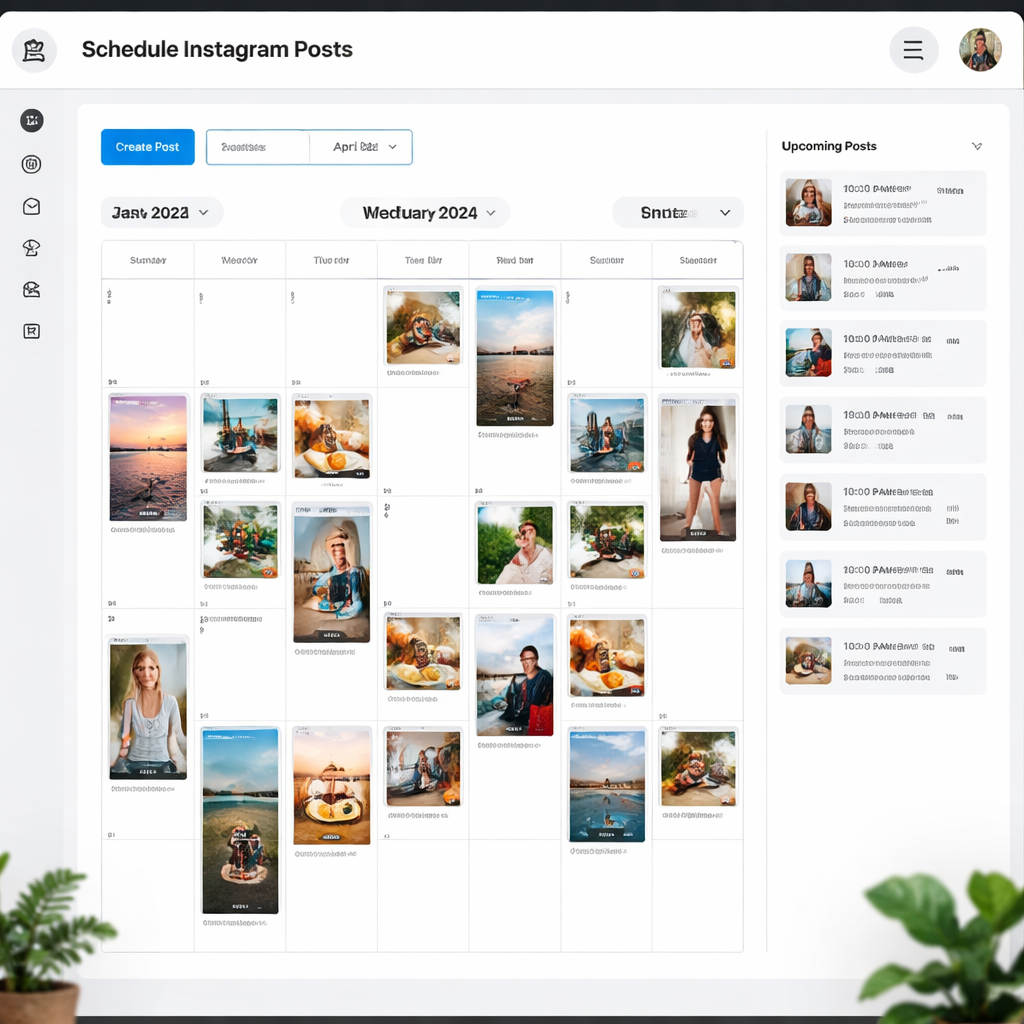
Efficient scheduling depends on batching. Instead of deciding what to post every day, create a weekly or biweekly calendar and fill it with content themes, formats, and time slots.

AdaptlyPost
Start Your 7-Day Free Trial
All-platform analytics
Social Inbox
AI-powered assistant
A simple planning structure works well:
- one educational post
- one carousel or checklist post
- one Reel
- one community or brand post
- a few Stories across the week
This prevents the common problem of posting randomly and hoping something sticks. It also makes it easier to keep your feed balanced between value, promotion, and engagement content.
If you manage multiple regions or brands, create separate calendars by audience and timezone rather than trying to run everything from a single posting pattern.
Step 4: Write Captions and Hashtags in Batches
One of the easiest ways to speed up Instagram scheduling is to batch caption writing. Instead of writing one caption at a time, draft all captions for the week in one session.
A simple structure works well:
- hook
- value
- call to action
For example:
Want more reach from Instagram?
Use a weekly posting rhythm with fixed content themes, stronger hooks, and one analytics review every two weeks.
Save this post and test the workflow this week.
Keep hashtags relevant and controlled. In most cases, three to five targeted hashtags work better than long spammy blocks. Tag collaborators, partners, or featured brands where relevant so the post has stronger distribution signals.
If you want extra help, AI caption tools can speed up first drafts and help you keep tone consistent across a larger calendar.
Step 5: Schedule Posts at the Right Times
Once the creative is ready, the next job is timing. Good scheduling is not just choosing any open slot. It means picking windows that fit both your audience behavior and your content format.
As a starting point, weekday late morning to early afternoon is usually a strong baseline for feed posts, while Stories often perform well in multiple smaller peaks throughout the day.
A practical starting schedule:
- Tuesday to Thursday around 11 a.m. to 1 p.m. for feed posts
- midday and evening windows for Stories
- test Reels in strong weekday windows, then refine based on replay rate and saves
When scheduling, always verify:
AdaptlyPost
Start Your 7-Day Free Trial
All-platform analytics
Social Inbox
AI-powered assistant
- timezone
- caption version
- final media asset
- tags and location
- first-comment plan, if you use one
This is also where automation pays off most. Once your calendar is loaded, the tool handles publishing while you stay focused on community management and creative work.


Step 6: Review Analytics and Improve the Calendar
Efficient scheduling only works if you review outcomes and improve the system. Analytics tell you whether your timing, content mix, and caption structure are actually working.
Look for patterns like:
- high views but low saves
- stronger engagement in the first hour
- specific formats outperforming at certain times
- repeat winners in the same weekday slot
Review performance every two weeks and adjust from there. If Reels do best on Wednesday mornings, protect that slot. If carousels underperform in the afternoon, move them earlier and test again.
AdaptlyPost makes this easier by keeping scheduled content and performance tracking in the same workflow, so you can compare what you planned against what actually worked.
Step 7: Troubleshoot Scheduling Problems Fast
Even a solid workflow runs into occasional issues. The most common Instagram scheduling problems are:
- failed publishing due to expired tokens
- broken Facebook Page connections
- wrong timezone settings
- unsupported media specs
- posts falling back to draft or approval status
If a post fails:
- Confirm the account is Business or Creator.
- Refresh the integration.
- Check image or video specs.
- Recheck the timezone.
- Reschedule with a fresh connection if needed.
It also helps to monitor your scheduled queue daily, especially for high-priority campaign posts.
Final Takeaway
The most efficient way to schedule Instagram posts in 2026 is to treat scheduling as a repeatable system, not a one-off task. Choose a platform that fits your workflow, batch content creation, publish in tested windows, and keep refining based on performance.
That is exactly where AdaptlyPost fits best. It gives you scheduling, AI-assisted content support, and analytics in one place, which makes the whole Instagram workflow easier to run and easier to improve.
If you want the broader all-format walkthrough, read How to Schedule Anything on Instagram.
FAQ
What is the most efficient way to schedule Instagram posts?
The most efficient approach is to batch content weekly, write captions in one session, load everything into a scheduler, and review analytics every two weeks. That reduces daily context switching and makes it easier to improve performance over time.
Can I schedule Instagram posts for free?
Yes, some platforms offer limited free plans, and Meta Business Suite supports basic scheduling. But if you need stronger workflow control, analytics, or AI-assisted caption support, a dedicated scheduler is usually a better fit.
AdaptlyPost
Start Your 7-Day Free Trial
All-platform analytics
Social Inbox
AI-powered assistant
What is the best time to schedule Instagram posts?
There is no single universal time, but weekday late morning and early afternoon are strong starting points for many brands. The best answer comes from testing your own audience behavior and reviewing first-hour engagement, saves, and reach.
Why do Instagram scheduled posts fail?
The most common reasons are expired permissions, a broken Facebook Page connection, unsupported media specs, or timezone mistakes. Refreshing the integration and validating the media usually resolves the issue.
How often should you review your Instagram scheduling analytics?
Review performance every two weeks so you have enough data to spot real patterns without waiting so long that trends go stale. Look at views versus saves, first hour engagement, and which formats win in which time slots. Adjust your calendar from there, protecting slots that produce repeat winners and moving formats that underperform.
What do I need before I can auto-publish Instagram posts?
Your Instagram account needs to be set to Business or Creator, not personal, and it has to be linked to a Facebook Page. Authorize that connection inside your scheduler, then test it with a post scheduled 10 to 15 minutes ahead before you trust it with real campaigns. If the test fails, the account, the Page link, or the authorization token is usually the cause.
How many hashtags should a scheduled Instagram post use?
Three to five targeted hashtags work better than a long spammy block. Tag collaborators, partners, or featured brands where relevant, since that gives the post stronger distribution signals. Keep the set controlled rather than maxing out every available tag.
What should you check before a scheduled Instagram post goes live?
Verify the timezone, the caption version, the final media asset, tags and location, and your first-comment plan if you use one. This final pass catches most of the mistakes that slip through a busy content calendar. A minute spent here saves a failed or embarrassing post later.
What content mix works for a weekly Instagram calendar?
A balanced week usually includes one educational post, one carousel or checklist post, one Reel, one community or brand post, and a few Stories spread across the days. That mix keeps the feed balanced between value, promotion, and engagement instead of leaning on one format. It also stops you from posting randomly and hoping something sticks.
How do you test a new Instagram scheduling connection?
Schedule a post 10 to 15 minutes ahead right after you authorize the connection inside your scheduler. If it publishes on time, the setup is solid. If it fails, check whether the account is still personal, whether the Facebook Page link is broken, or whether the authorization token needs a refresh.
Put this into practice with AdaptlyPost
Was This Article Helpful?
Let us know what you think!
See us more often in Google
One click marks AdaptlyPost as a preferred source, so our articles sit higher in your Top Stories, AI Mode, and AI Overviews.
Before you go...
AdaptlyPost
Schedule your content across all platforms
Manage all your social media accounts in one place with AdaptlyPost.
All-platform analytics
Social Inbox
AI-powered assistant
Related Articles
A Practical Answer - Can You Schedule Instagram Reels 2026
Queuing is easy; editing and cancelling are not. How to schedule Instagram photo uploads and Reels, and what to do when the scheduler stops publishing.


Useful Context - Post to Multiple Social Media at Once
Centralize accounts, batch creation, automate the queue, and you post to multiple social media at once in one sitting. Setup plus combined reporting.
8 Pallyy Alternatives With Deeper Analytics and Approvals
Discover 8 top Pallyy alternatives for social media management. Compare features, pricing, and find the tool that fits your workflow.