
TL;DR, Quick Answer
5 min readYou can download images from Pinterest using the built-in download button on desktop or mobile. Always respect copyright by using downloaded images only for personal reference and crediting creators when sharing.
How to Download Images from Pinterest
This guide answers the question: How to download images from Pinterest 2026. The quickest route to save Pinterest images is the button Pinterest already gives you: open the pin, tap the three dots, choose Download image. That button is missing on video pins and some promoted pins, which is where the desktop and browser workarounds below earn their keep.
However, before downloading, it is important to understand that most images on Pinterest are created by individual artists, photographers, and businesses who retain copyright over their work. Downloading for personal reference is generally acceptable, but using someone else's images commercially without permission is not.
- The three-dot menu appears on the pin
- Download image saves straight to your device
- The download image option is missing
- Right-click save or long-press save fills the gap
Download Pinterest Images on Desktop
Method 1: Using the Built-In Download Button
- Open Pinterest in your web browser and navigate to the pin you want to download
- Click on the pin to open it in full view
- Click the three-dot menu icon (in the top-right area of the pin)
- Select "Download image" from the dropdown menu
- The image will save to your default downloads folder
Method 2: Right-Click Save
- Open the pin in full view
- Right-click on the image
- Select "Save image as..." from the context menu
- Choose your desired save location and file name
- Click "Save"
Note: Some pins may have right-click saving disabled. In those cases, use the built-in download option.
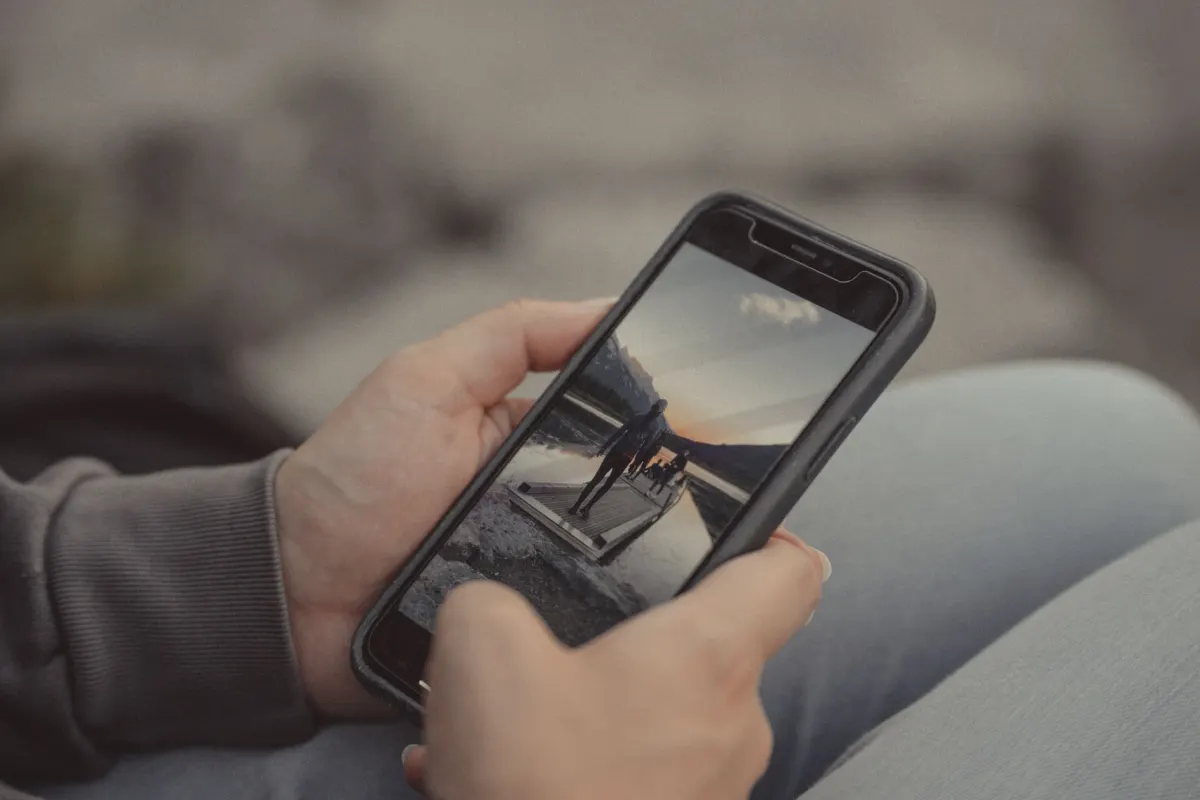
Download Pinterest Images on Mobile
On the Pinterest App (iOS and Android)
- Open the Pinterest app and find the pin you want to download
- Tap the pin to open it
- Tap the three-dot menu icon
- Select "Download image"
- The image saves to your device's photo gallery
Through Your Mobile Browser
- Open Pinterest in your mobile browser (Safari, Chrome)
- Navigate to the pin and open it
- Long-press on the image
- Select "Save Image" or "Download Image" from the menu
- Find the image in your camera roll or downloads folder
Downloading Multiple Images
Pinterest does not offer a native bulk download feature. If you need to download multiple images, your options include:
- Downloading each image individually using the methods above
- Using browser extensions designed for batch downloading (available for Chrome and Firefox)
- Using the Pinterest API for authorized, large-scale access (requires developer credentials)
Copyright and Legal Considerations
| Usage | Acceptable? |
|---|---|
| Personal inspiration and reference | Generally yes |
| Sharing on your own social media with credit | Use caution, check the source |
| Using in commercial projects | No, unless you have explicit permission or the image has a permissive license |
| Printing for personal use | Generally yes |
| Using in presentations | Acceptable with attribution for educational/internal use |
| Selling or redistributing | No, unless licensed |
Best Practices for Respecting Copyright
- Always check the pin's source link to find the original creator
- When sharing downloaded images, credit the creator and link to the original
- For commercial use, contact the creator directly to request permission or purchase a license
- Consider using stock photo platforms for commercial needs instead
- Look for pins that explicitly state they are free to use or carry Creative Commons licenses
Alternatives to Downloading
Save to Pinterest Boards
Instead of downloading, you can save pins to your Pinterest boards for easy access. This keeps the image linked to its original source and creator.
Screenshot
For quick reference, a screenshot captures the image along with context like the pin description and source. This is convenient for personal use but results in lower image quality.
Bookmark the Source
Many pins link to external websites. Bookmarking the source page lets you access the full-resolution image and supporting content later.
Troubleshooting Common Issues
- Download button not appearing: Make sure you are logged into your Pinterest account. Some features are only available to logged-in users.
- Low-resolution download: Pinterest may serve compressed versions. Click through to the source website for the original high-resolution file.
- Image not saving on mobile: Check your app permissions to ensure Pinterest has access to your photo gallery or storage.
Related Terms
- Cross-Platform Content: using visual content across multiple platforms
- Ephemeral Content: content formats that disappear, unlike saved Pinterest pins
- Digital Marketing: the broader field where Pinterest visual strategy plays a role
- Engagement Rate: measuring how your Pinterest content performs
Frequently Asked Questions
Is it legal to download images from Pinterest?
Downloading images for personal use is generally acceptable. However, the copyright belongs to the original creator. Using downloaded images commercially, selling them, or claiming them as your own is a copyright violation.
Can I use Pinterest images for my blog?
You should not use Pinterest images on your blog without the creator's permission. Instead, find the original source and request a license, use royalty-free stock images, or create your own visuals.
Why are some Pinterest images blurry when downloaded?
Pinterest compresses images for faster loading. The downloaded version is lower quality than the original. To get the full-resolution image, click through to the pin's source website and download from there.
Can I download videos from Pinterest?
Yes, you can download video pins using the same three-dot menu method. Select "Download video" from the options.
How do I find the original source of a Pinterest image?
Click on the pin and look for the source link, which usually appears below the image. You can also use reverse image search tools like Google Images to locate the original source.
Do you need a Pinterest account to download images?
The download button often works without an account, but Pinterest limits some features to logged-in users. If the download option is missing from the three-dot menu, sign in first before trying right-click save or long-press.

AdaptlyPost
Start Your 7-Day Free Trial
All-platform analytics
Social Inbox
AI-powered assistant
What is the fastest way to save a single Pinterest pin?
The three-dot menu is the quickest route. Open the pin, tap the three dots, and choose Download image, and it lands in your downloads folder or photo gallery without extra steps.
Can you save a Pinterest image without downloading a file?
Saving the pin to one of your Pinterest boards keeps it linked to the original source and creator instead of storing a copy. A screenshot or a bookmark of the source page works too, though a screenshot loses image quality and a bookmark just points back to the page.
Why is right-click save grayed out on some Pinterest pins?
Some pins disable right-click saving on purpose, so the Save image as option never appears. When that happens, use the built-in three-dot download button instead, since it works even on pins that block right-click.
Is there a way to download many Pinterest images at once?
Pinterest has no native bulk download feature, so each pin has to be saved individually through the three-dot menu or right-click. Browser extensions for Chrome and Firefox can batch downloads, and the Pinterest API offers authorized large-scale access if you have developer credentials.
Plan Your Visual Content Strategy
A Pinterest post scheduler plans, schedules, and manages visual content across Pinterest and all your other social platforms. Build a cohesive visual strategy with AdaptlyPost.
Put this into practice with AdaptlyPost
Was This Article Helpful?
Let us know what you think!
See us more often in Google
One click marks AdaptlyPost as a preferred source, so our articles sit higher in your Top Stories, AI Mode, and AI Overviews.
Before you go...
AdaptlyPost
Schedule your content across all platforms
Manage all your social media accounts in one place with AdaptlyPost.
All-platform analytics
Social Inbox
AI-powered assistant
Related Glossary Terms
Create Better Tutorials With This Pinterest Idea Pins Guide
Up to 20 pages of video, images, and text in a single pin. How to create idea pins on Pinterest, and what changed since the Story Pins rebrand.

Make AI Content Creation Work With Human Judgment
Treat AI content creation as a drafting tool and it saves hours. Where it works for social, the guardrails that protect brand voice, and what to fact-check.
Explained Clearly - Batching Means
Context switching is the real cost. What batching means in practice, which tasks group well together, and how one session can cover a whole month.
Related Articles
Explained Clearly - Body Copy
Headlines earn the click; body copy earns the action. How to structure it for ads and social, keep it scannable, and cut it down without losing the argument.
Explained Clearly - Boomerang Meaning
One second of motion looped both ways: the Boomerang meaning, how to shoot one inside Stories, the effects available, and ideas that still feel fresh.
A Practical Overview - For Carousel Post
Multiple images or videos in one swipeable unit. Where a carousel post outperforms a single image, and the slide count that holds attention longest.