
TL;DR, Quick Answer
7 min readLinkedIn scheduled posts fail most often due to expired API tokens, content policy violations, or image format issues. Reconnect your scheduling tool, check content compliance, and verify image specs to fix most problems.
This overview puts the topic LinkedIn scheduled posts not working into useful context. A queued update that never appeared usually means one of ten things, and scheduling LinkedIn posts fails most often on an expired token rather than the content.
Silent scheduling failures on LinkedIn are an all-too-common headache. It does not matter whether you rely on LinkedIn's own scheduler, Meta Business Suite, or a third-party app like AdaptlyPost, Buffer, or Hootsuite. The root causes typically fall into a handful of categories: expired connection tokens, content policy flags, or media formatting problems. To make matters worse, the error messages you get (if you get any at all) are rarely informative.
Below are 10 targeted solutions for the most frequent causes of LinkedIn scheduled post failures.
Schedule Linkedin Posts: key strategies
What goes wrong: The most prevalent trigger for failed scheduled posts is an expired OAuth token. LinkedIn periodically invalidates the authorization that lets your scheduling tool publish on your behalf. Once that token lapses, posts sit in your queue without ever going live.
How to resolve it:
- Navigate to your scheduling tool's account or connection settings
- Locate the LinkedIn integration
- Remove the existing connection
- Re-establish it by completing LinkedIn's OAuth authorization flow
- Queue up any posts that failed to publish
Prevention tip: Make a habit of checking your tool's connection dashboard once a week. Most platforms surface alerts when a token is nearing expiration. AdaptlyPost displays connection health directly in its sidebar interface.
Fix 2: Understand LinkedIn's Built-In Scheduler Constraints
What goes wrong: LinkedIn's native scheduling feature has a narrower set of capabilities than many users expect, which can lead to unexpected failures.
Specific constraints to know:
- Only available on desktop -- the LinkedIn mobile app does not support scheduling
- Posts can only be scheduled up to 3 months ahead
- Long-form articles cannot be scheduled, only standard posts
- Company Page scheduling is not universally available across all account types
- Certain content formats like carousels and documents may not be supported natively
How to resolve it: If your content strategy goes beyond what LinkedIn's native tool handles, switch to a dedicated scheduling platform that offers full support for every LinkedIn post type.
- Only available on desktop, not the mobile app
- Posts can only be scheduled up to 3 months ahead
- Long-form articles cannot be scheduled
- Company Page scheduling is not universal across account types
- Full support for every LinkedIn post type
- Covers formats like carousels and documents
- Includes tools such as AdaptlyPost, Buffer, and Hootsuite
Fix 3: Review Your Content Against LinkedIn's Community Standards
What goes wrong: LinkedIn runs automated content moderation that can silently block posts containing flagged terms, links pointing to suspect domains, or material that conflicts with its professional community guidelines.
Frequent policy triggers:
- URLs leading to domains on LinkedIn's spam blocklist
- Overly salesy or promotional wording
- Content that resembles automated bot output
- Using more than 3-5 hashtags
- Shortened URLs (such as bit.ly links) that LinkedIn may treat as suspicious
How to resolve it:
- Replace shortened URLs with the full destination address
- Trim your hashtag count to 3-5 that are directly relevant
- Familiarize yourself with LinkedIn's current professional community policies
- Try posting the content manually as a test -- if it publishes without issue, the problem lies elsewhere

Fix 4: Confirm Your Media Files Meet LinkedIn's Requirements
What goes wrong: LinkedIn enforces strict specifications for uploaded media. Posts containing images that are too large, videos in unsupported formats, or corrupted files will fail without a clear error message.
LinkedIn's media specifications:

AdaptlyPost
Start Your 7-Day Free Trial
All-platform analytics
Social Inbox
AI-powered assistant
- Images: JPG, PNG, or GIF format. 5 MB maximum. Optimal dimensions are 1200 x 627 pixels.
- Videos: Must be MP4. File size between 75 KB and 5 GB. Duration from 3 seconds to 10 minutes.
- Documents (PDF carousels): PDF format only. 100 MB ceiling. Up to 300 pages.
How to resolve it:
- Compress or resize images to stay under the 5 MB threshold
- Convert any non-MP4 video files before uploading
- Use a compression tool for large media assets
- Isolate the problem by scheduling a plain text post first -- if that succeeds, the media is the culprit
Fix 5: Verify Your Page Access Permissions
What goes wrong: Publishing to a LinkedIn Company Page requires admin-level or content admin access. If someone adjusted your permissions (or if you were removed as an admin), any scheduled posts targeting that page will fail.
How to resolve it:
- Open the Company Page, then go to Admin tools and select Manage admins
- Confirm that your account holds the proper role (Super admin, Content admin, or Analyst)
- If you are scheduling through a third-party tool, make sure the connected LinkedIn account has publishing authority
Fix 6: Rule Out a LinkedIn Platform Outage
What goes wrong: LinkedIn's API occasionally goes down, which stops all scheduled content from being delivered regardless of which tool you use.
How to resolve it:
- Visit Downdetector's LinkedIn page to see whether others are reporting issues
- Look for updates on LinkedIn's official status channels
- If there is a confirmed outage, wait for service to stabilize and then reschedule the affected posts
Fix 7: Double-Check Your Timezone Configuration
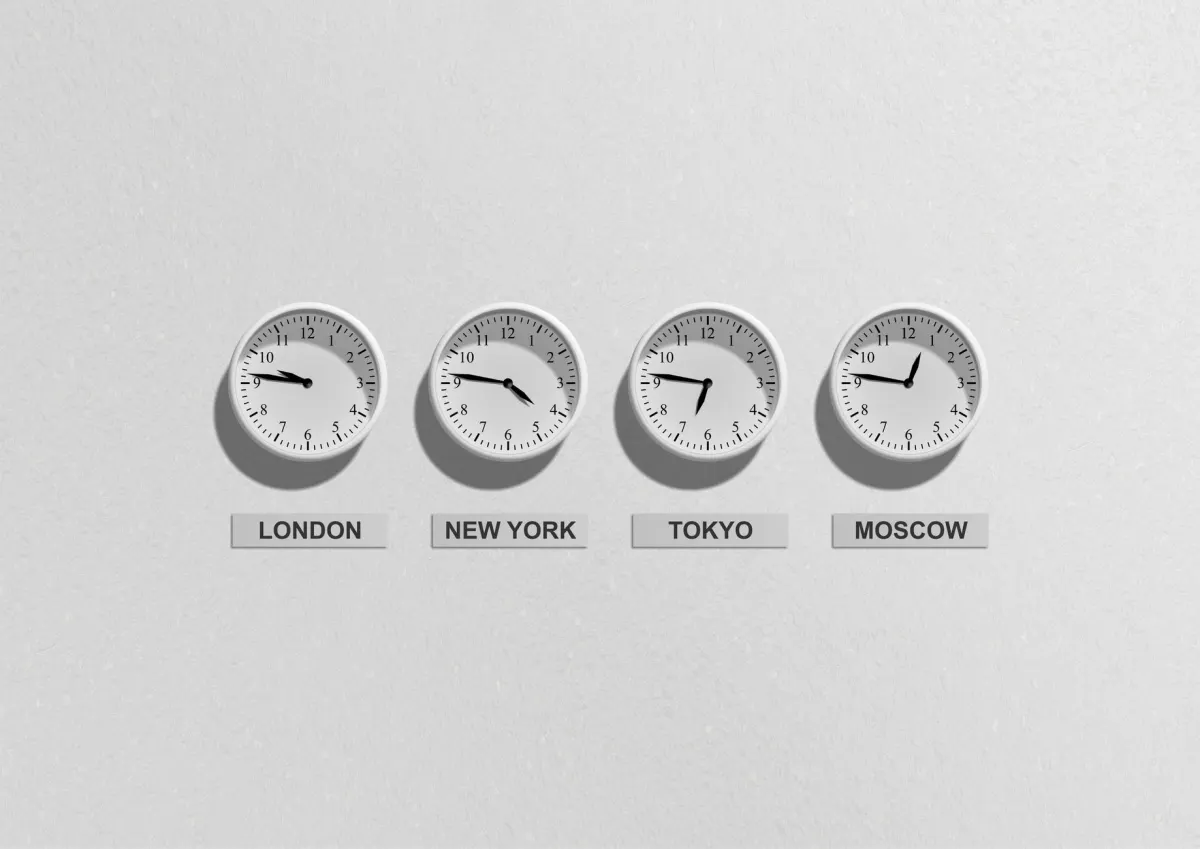
What goes wrong: A mismatch between the timezone set in your scheduling tool and the timezone you expect can cause posts to go out at the wrong hour, or appear as if they never published at all.
How to resolve it:
- Open your scheduling tool's settings and verify the timezone aligns with your intended audience
- Confirm that times displayed on your content calendar match your expectations
- Keep in mind that LinkedIn's built-in scheduler defaults to whatever timezone your web browser reports
Fix 8: Investigate API Rate Limiting
What goes wrong: LinkedIn caps the number of API requests third-party tools can make in a given period. When your scheduling tool hits that ceiling, queued posts will remain stuck and unpublished.
How to resolve it:
- Rate limiting is generally handled at the tool level, not something you can fix directly
- Reach out to your scheduling tool's support team if you suspect rate-limit issues
- Distribute your scheduled posts across the day instead of batching them all at once
- If rate limits are a recurring problem, upgrading your scheduling tool's plan may increase your API quota
Fix 9: Clear Browser Issues That Interfere with Native Scheduling
What goes wrong: When using LinkedIn's own scheduler through a desktop browser, cached data, outdated sessions, or conflicting browser extensions can cause unexpected behavior.
How to resolve it:
- Clear your browser's cache and cookies for linkedin.com
- Attempt the scheduling in a private or incognito browsing session
- Temporarily disable browser extensions that might interfere
- Switch to an entirely different browser to rule out browser-specific bugs
Fix 10: Avoid Publishing Duplicate Content
What goes wrong: LinkedIn's algorithm can detect and suppress posts that closely mirror something you recently published. If a scheduled post is effectively a copy of a previous one, LinkedIn either blocks it outright or cuts its distribution dramatically.
How to resolve it:
- Make sure every scheduled post contains distinct text
- When repurposing existing material, rewrite captions substantively rather than copying them unchanged
- Leave at least 24 hours between publishing posts with similar themes or messaging
Proactive Measures to Prevent Future Failures
- Audit connections weekly: Set a recurring reminder to review account connections every Monday
- Activate failure alerts: Turn on push or email notifications for scheduling errors in your tool's settings
- Run a test post first: Before loading an entire week of content, verify everything works by scheduling a single post
- Bookmark LinkedIn's specs: Keep LinkedIn's current media and character requirements easily accessible
- Verify critical posts after they go live: For time-sensitive or high-stakes content, always confirm publication manually
FAQ
My LinkedIn post published but got zero visibility. Why?
Zero visibility is a distribution issue, not a publishing failure. The post went live, but LinkedIn's algorithm chose not to amplify it. Typical reasons include publishing at a low-traffic hour, including outbound links directly in the post body (LinkedIn penalizes this in reach), or the post simply did not attract enough early engagement to trigger broader distribution.
AdaptlyPost
Start Your 7-Day Free Trial
All-platform analytics
Social Inbox
AI-powered assistant
Is there a way to recover content from a failed scheduled post?
When using a third-party tool, your content is usually preserved in a drafts folder or a failed-posts queue. Fix the underlying problem and reschedule from there. LinkedIn's native scheduler can lose the content entirely after a failure, so always keep a copy of your post text saved elsewhere.
Does LinkedIn treat scheduled posts differently in the algorithm?
No. LinkedIn has publicly stated that posts published through its native scheduler or through approved third-party integrations receive the same algorithmic treatment as content posted manually in real time.
What happens to a queued LinkedIn post if the connection token expires?
LinkedIn periodically invalidates the OAuth authorization that lets your scheduling tool publish on your behalf. Once that token lapses, any post already sitting in the queue stays there and never goes live, usually without an error message. Reconnect the LinkedIn integration in your scheduling tool's settings and requeue anything that failed.
Can I schedule a LinkedIn post from my phone?
LinkedIn's native scheduler only works through a desktop browser. The mobile app does not support scheduling at all, so any post you want to queue has to go through a computer, not your phone.
Why would a bit.ly link keep a scheduled LinkedIn post from publishing?
LinkedIn's automated content moderation treats shortened URLs, including bit.ly links, as suspicious and can silently block a post that contains one. The fix is to replace the shortened link with the full destination address before scheduling. Posting the same content manually as a test will confirm whether the link was the actual problem.
What image size and format does LinkedIn require for scheduled posts?
LinkedIn accepts images in JPG, PNG, or GIF format up to 5 MB, with 1200 by 627 pixels as the optimal dimensions. If your file is over that limit, compress or resize it before scheduling, since an oversized image can fail without any clear error message.
Which account roles can publish scheduled posts to a LinkedIn Company Page?
Publishing to a LinkedIn Company Page requires an account with Super admin, Content admin, or Analyst access. If someone changed your permissions or removed you as an admin, scheduled posts targeting that page will fail. Check Admin tools under Manage admins on the Company Page to confirm your role. If you schedule through a third-party tool, make sure the connected account carries that same publishing authority.
Why did my LinkedIn post go out at the wrong time?
A mismatch between the timezone in your scheduling tool and the timezone you actually intend pushes a post out at the wrong hour. It can also make the post look like it never published. LinkedIn's own built-in scheduler defaults to whatever timezone your web browser reports, which is not always the one you meant. Check your scheduling tool's settings and confirm the times on your content calendar match what you expect.
Why does LinkedIn suppress a scheduled post that repeats earlier content?
LinkedIn's algorithm can detect a scheduled post that closely mirrors something you published recently and suppress its distribution or block it outright. Rewrite captions substantively instead of reusing them unchanged, and leave at least 24 hours between posts covering similar themes.
Put this into practice with AdaptlyPost
Was This Article Helpful?
Let us know what you think!
See us more often in Google
One click marks AdaptlyPost as a preferred source, so our articles sit higher in your Top Stories, AI Mode, and AI Overviews.
Before you go...
AdaptlyPost
Schedule your content across all platforms
Manage all your social media accounts in one place with AdaptlyPost.
All-platform analytics
Social Inbox
AI-powered assistant
Related Articles
Troubleshoot "Why Is My Pin Not Publishing on Pinterest?"
Blocked link domains, the 20MB image cap, and expired API tokens explain most of why is my pin not publishing on Pinterest. How to tell which one it is.
A Clear Answer - How to View Scheduled Posts on Facebook 2026
Finding how to view scheduled posts on Facebook 2026 depends on Page, Group, or profile. Four routes compared, plus fixes when a queued post never appears.
Key Insights - Schedule LinkedIn Posts
The native scheduler is free but desktop-only. Seven ways to schedule LinkedIn content compared on price, analytics, approvals, and multi-platform reach.