
TL;DR, Quick Answer
7 min readPost multiple photos on Instagram by tapping the + icon, selecting "Select Multiple," and choosing up to 10 photos. Pre-crop all images to the same aspect ratio to avoid unexpected cropping.
Here is a practical answer to the query: How do you upload multiple pictures to Instagram. The answer to how do you upload multiple pictures to Instagram is the carousel: tap the layered-squares icon while picking your first image and you can add up to twenty photos and videos to a single swipeable post. It works on mobile, on desktop, and through most schedulers.
The process is straightforward: tap the + button, look for the 'Select Multiple' icon (the overlapping squares symbol), and start choosing your images. Each carousel can hold a maximum of 10 photos or videos.
Why Share Multiple Images in One Post?
Combining multiple photos into a carousel is not about packing as much content as possible into a single upload. It is a deliberate strategy for driving more engagement and conveying stories that a lone image simply cannot tell.
The primary advantage is longer dwell time -- the duration someone spends interacting with your post. Every time a follower pauses their scrolling to swipe through your slides, they send a powerful signal to Instagram's algorithm that your content deserves attention.
This matters more than you might think. Instagram's algorithm frequently gives carousels a "second life" in the feed, surfacing a different slide to followers who initially scrolled past the first one. It is essentially a built-in second chance to grab attention without publishing anything new.
Situations Where Carousels Shine
- Instructional walkthroughs: Decompose a recipe, exercise routine, or craft project into numbered, easy-to-follow slides.
- Transformation showcases: Present before-and-after images from renovations, fitness journeys, or creative endeavors.
- Product galleries: Highlight an item from various angles, call out specific features, or show it in different usage scenarios.
- Event highlights: Assemble the standout moments from a conference, celebration, or trip into a single cohesive post.
What makes carousels truly powerful is their narrative potential. Each slide should transition naturally into the next, guiding your viewer from an attention-grabbing opener to a clear takeaway or call to action.
Creating a Multi-Photo Post from the Mobile App
Detailed Walkthrough:
- Launch Instagram: Tap the plus (+) icon at the bottom of your screen, which opens your photo library.
- Activate multi-selection mode: Before picking any photos, locate the 'Select Multiple' icon -- it resembles stacked squares and sits on the right side of the image preview area. Tapping it switches the interface from single-post mode to carousel mode.
- Pick your photos and videos: Select up to 10 items. Each one displays a number on its thumbnail indicating its position in the carousel sequence.
- Arrange the order: After tapping 'Next,' you arrive at the reordering screen. Press and hold any image to drag it to a different slot.
- Important limitation: Finalize the sequence at this stage. Once the carousel is published, there is no way to rearrange slides without deleting the entire post and starting over.
- Apply edits: On the following screen, you can add a uniform filter across all images for visual cohesion, or tap individual photos to fine-tune brightness, contrast, saturation, and other settings.
- Verify the cropping: Double-check that all images are framed as intended. Instagram applies the aspect ratio of the first selected image to every subsequent slide. Our free Instagram Safe Zone Checker can help ensure nothing critical gets cut off.
- Publish: Craft your caption, tag relevant accounts, add a location, and tap 'Share.'
Posting a Carousel from Desktop
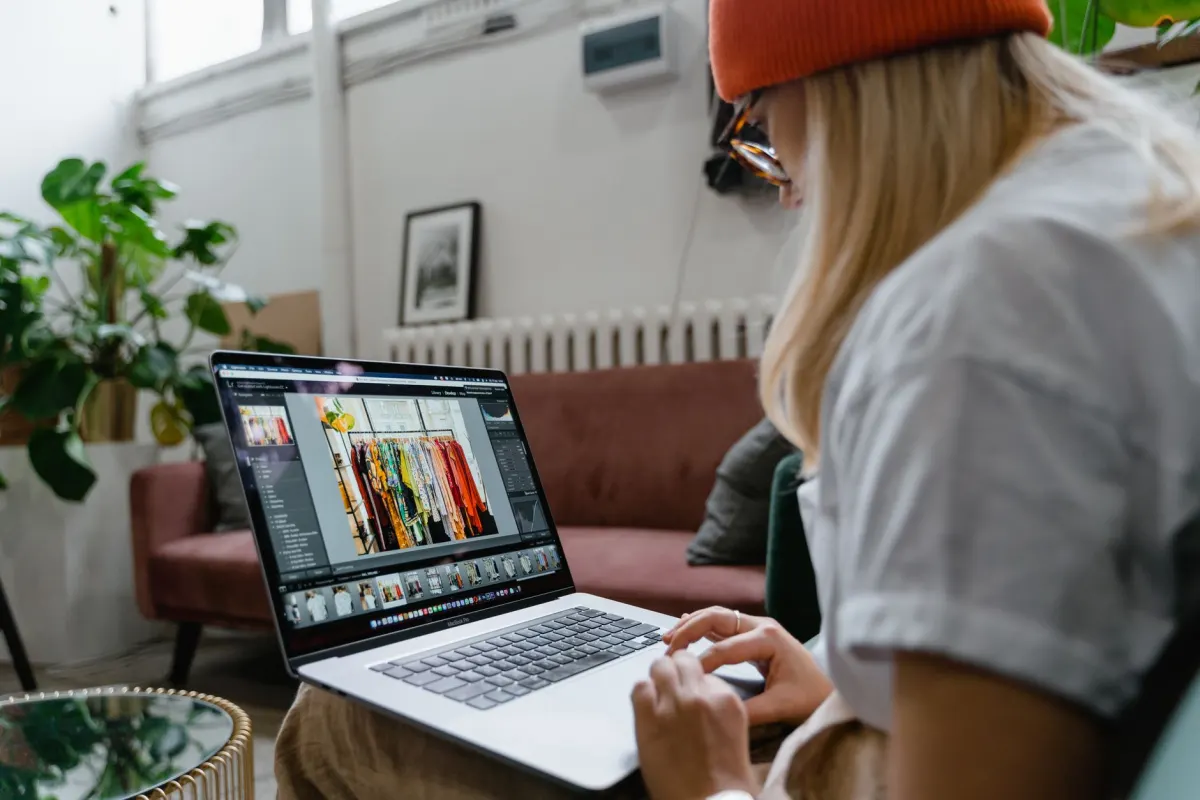
Desktop publishing is particularly useful for social media professionals and creators whose edited images live on their computers. Uploading carousels directly from your machine eliminates the hassle of transferring files to your phone first.
Detailed Walkthrough:
- Sign in to Instagram: Visit Instagram.com and log into your account.
- Start a new post: Click the Create button in the left sidebar. An upload window appears, prompting you to choose files from your computer.
- Choose your images: Browse your file system and select all the photos for your carousel. You can also drag and drop files directly into the upload area.
- Rearrange as needed: The desktop interface recognizes multiple files automatically and formats them as a carousel. Click and drag any image to change its position in the sequence.
- Set the crop: Use the crop tool in the bottom-left corner to define the aspect ratio for the entire carousel.
- Limitation to note: The desktop editor provides a more streamlined experience than the mobile app. It does not include the full range of creative tools like filters, stickers, or interactive elements available on your phone.
- Complete and share: Write your caption, tag accounts, add descriptive alt text for accessibility, and click Share.
- Filters, stickers, and interactive elements
- Fine-tune brightness, contrast, and saturation on each photo
- Drag to reorder slides before publishing
- Streamlined editor with fewer creative tools
- Crop tool sets the ratio for the whole carousel
- Add alt text for accessibility before sharing
Scheduling Multi-Photo Posts in Advance
Publishing carousels by hand every day is not realistic for anyone taking Instagram seriously. Scheduling your posts is the key to staying consistent, reclaiming time, and consolidating your creative efforts into focused production sessions.
A scheduling platform like AdaptlyPost lets you upload and sequence all your carousel images, compose and refine your captions, include alt text, and configure everything to publish at the ideal moment -- all managed from one interface.
The Strategic Value of Scheduling Carousels
Automating your publishing schedule removes the constant pressure of needing to be available at posting time. It keeps your content flowing even when you are occupied with other work, preserving the steady cadence that Instagram's algorithm favors. Hitting peak engagement windows when your audience is most active becomes effortless.
The mobile app provides richer creative tools, but desktop-based scheduling is built around efficiency and strategic planning. For a comprehensive walkthrough, consult our full guide on how to schedule carousel posts on Instagram and Facebook.
Troubleshooting: Common Issues with Multi-Photo Posts
Issue 1: Images Are Being Cropped in Unexpected Ways
- The cause: Instagram enforces a single aspect ratio across the entire carousel, and that ratio is determined by whatever first image you select. Choose a square first image, and everything else gets cropped to square.
- The solution: Decide on your aspect ratio before you begin selecting photos. Pre-crop every image to identical dimensions -- either square (1:1) or portrait (4:5) -- so nothing gets cut unexpectedly.

Issue 2: The Multi-Select Button Is Not Visible
- The cause: This almost always means your Instagram app needs an update.
- The solution: Open the App Store (iOS) or Google Play Store (Android) and check for an available Instagram update. Installing the latest version should restore the missing feature.
Issue 3: The Upload Hangs or Fails
- The cause: An unreliable internet connection or a temporary glitch on Instagram's servers.
- The solution: Toggle between Wi-Fi and cellular data, then retry the upload. If the problem continues, wait a few minutes before trying again. For recurring issues with scheduled content, our guide on Instagram scheduled posts not working provides additional troubleshooting steps.
FAQ: Instagram Multi-Photo Posts
How many images can a single carousel contain?
Each Instagram carousel supports up to 10 photos and videos in one post.
Is it possible to write separate captions for individual slides?
No. A single caption covers the entire carousel. If you need slide-specific text, the standard workaround is to add text overlays directly onto each image before uploading.

AdaptlyPost
Start Your 7-Day Free Trial
All-platform analytics
Social Inbox
AI-powered assistant
Can slides be reordered once the carousel is live?
No. After publishing, you cannot rearrange, swap, or add photos to an existing carousel. The only option is to delete the post entirely and re-upload it with the corrected order. This is why careful pre-publication review is essential.
What image dimensions produce the best results for carousels?
- Portrait orientation: 1080 x 1350 pixels (4:5 ratio)
- Square orientation: 1080 x 1080 pixels (1:1 ratio)
Critical reminder: The entire carousel adopts the aspect ratio of your first selected image. Resize all photos to matching dimensions before assembling the post to prevent unwanted cropping.
Quick Reference Checklist
- Leverage carousels for storytelling: Move beyond single images with transformation posts, how-to guides, and event recaps.
- Include up to 10 photos or videos: Activate multi-selection using the stacked-squares icon in the Instagram app.
- Let the first image set the ratio: All remaining slides will be cropped to match it. Pre-crop everything to 1:1 or 4:5 for consistency.
- Sequence matters: You cannot rearrange slides after publishing. Review the order carefully before hitting Share.
- Schedule ahead for consistency: Use a tool like AdaptlyPost to save time and maintain a reliable posting rhythm.
Can a carousel mix photos and videos in the same post?
Yes, Instagram carousels accept both in one post. The combined total is capped at 10 items, and each one keeps the position you gave it while uploading.
What happens if I pick photos before tapping "Select Multiple"?
Tapping an image before switching to multi-select mode locks you into a single-photo upload. Back out, tap the stacked-squares icon first, then choose your photos again.
Why did my whole carousel come out square when only my first photo was square?
Instagram sets the aspect ratio from the first image you select and applies it to every slide that follows. A square first pick forces square crops on the rest, no matter how the other photos were originally shot.
Is there a way to give each carousel slide its own caption?
No, a single caption covers the whole carousel, so there is no field for slide-by-slide text. Creators work around this by adding text overlays to each image before uploading.
What should I do if I already published a carousel with the photos in the wrong order?
There is no in-app fix for a published carousel's order. Delete the post and re-upload the same images in the sequence you meant, which is why reviewing the order before you tap Share matters so much.
What pixel dimensions keep Instagram from cropping my carousel photos?
Size portrait images at 1080 by 1350 pixels for a 4:5 ratio, or 1080 by 1080 pixels for a square 1:1 ratio. Matching every photo to one of these before you upload keeps the crop from surprising you.
Why does the multi-select icon not show up in my Instagram app?
An outdated app version is almost always the reason the stacked-squares icon disappears. Update Instagram from the App Store or Google Play and the option should come back.
Why does my carousel upload keep failing or getting stuck?
A shaky Wi-Fi or cellular connection, or a brief glitch on Instagram's servers, is the usual cause. Toggle between networks and try again, and if it keeps happening, wait a few minutes before your next attempt.
What kinds of content work best as a carousel instead of a single photo?
Step-by-step guides, before-and-after transformations, product shots from multiple angles, and event recaps all suit the swipeable format. Each of these needs more than one image to tell the story a single photo would flatten.
Does scheduling a carousel change how many photos I can include?
Scheduling does not change the limit. Tools like AdaptlyPost still let you upload and sequence up to 10 photos or videos, then set the publish time in advance so you are not doing it by hand.
Put this into practice with AdaptlyPost
Was This Article Helpful?
Let us know what you think!
See us more often in Google
One click marks AdaptlyPost as a preferred source, so our articles sit higher in your Top Stories, AI Mode, and AI Overviews.
Before you go...
AdaptlyPost
Schedule your content across all platforms
Manage all your social media accounts in one place with AdaptlyPost.
All-platform analytics
Social Inbox
AI-powered assistant
Related Articles
A Clear Answer - How to Make Instagram Carousel Post 2026
Ten slides, one job each. How to create Instagram carousel post 2026 audiences swipe through, from the scroll-stopper opener to the closing action.
Explained Clearly - Size for an Instagram Photo
Export at 1080px wide and Instagram stops softening your work. Exact sizes for square, portrait, landscape, Stories, Reels, and profile photos in 2026.
Clever Captions for Instagram: 8 Formulas That Boost Engagement
Eight caption formulas that make an ordinary photo sound intentional, from behind-the-scenes honesty to expectation-versus-reality contrasts.